Complete Sync Guide
Full walkthrough of syncing WordPress data to Google Business Profile
This guide covers everything about syncing data between WordPress and Google Business Profile.
New to syncing? Start with the Sync Quickstart for a 5-minute introduction.
Prerequisites
- Verified Google location — Verification Guide
- API key created — API Keys Guide
- WordPress plugin installed & connected — Plugin Installation
Understanding Sync Center
The Sync Center is your control panel for managing data synchronization. Access it via Sync Center in the dashboard sidebar.
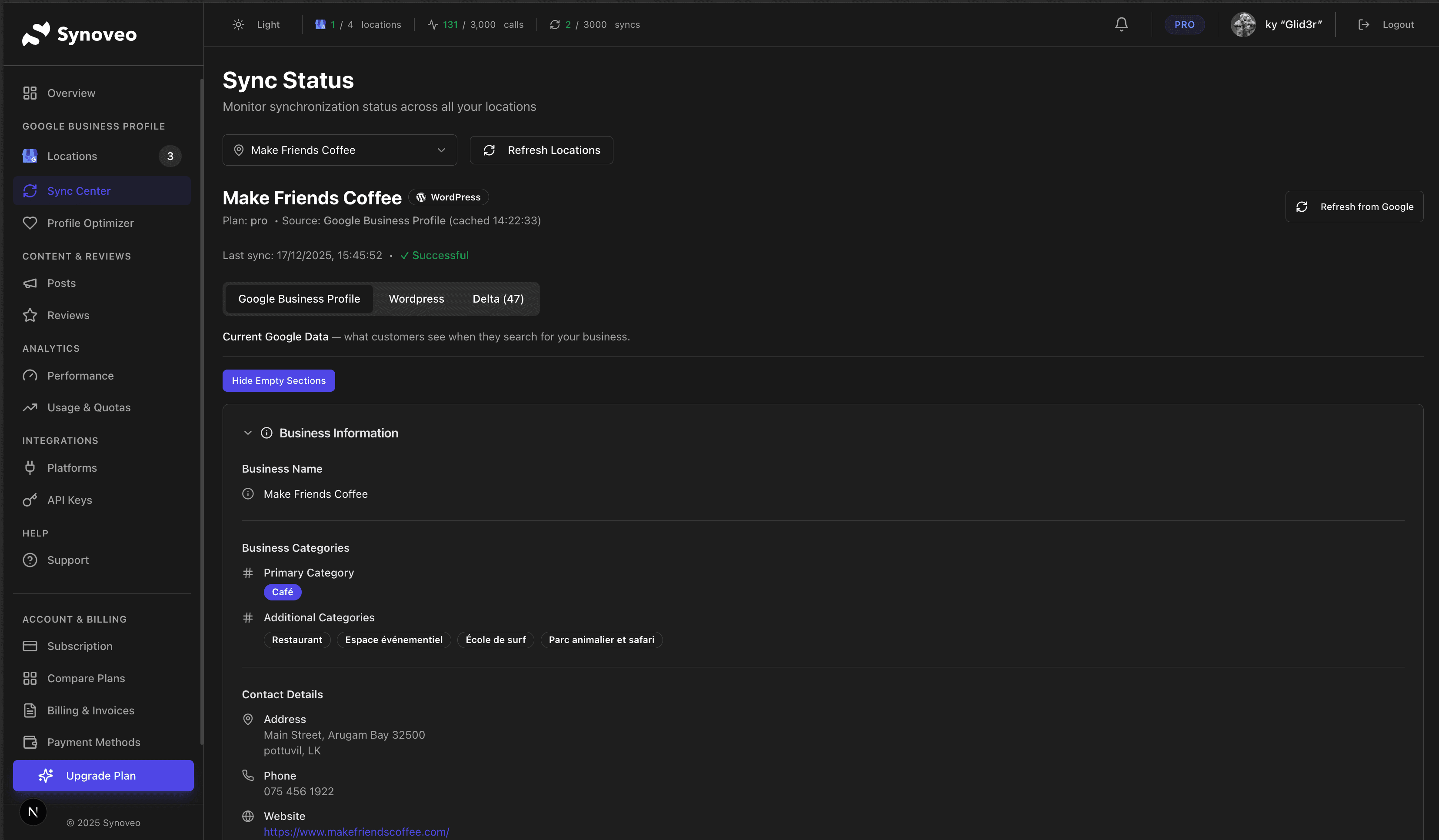
The Three Tabs
| Tab | Purpose |
|---|---|
| Google Business Profile | View current data on Google (read-only) |
| WordPress (or your platform) | Configure which plugin fields map to GBP fields |
| Delta | Compare differences and execute sync |
Tab 1: Google Business Profile View
The GBP tab shows what's currently live on your Google Business Profile.
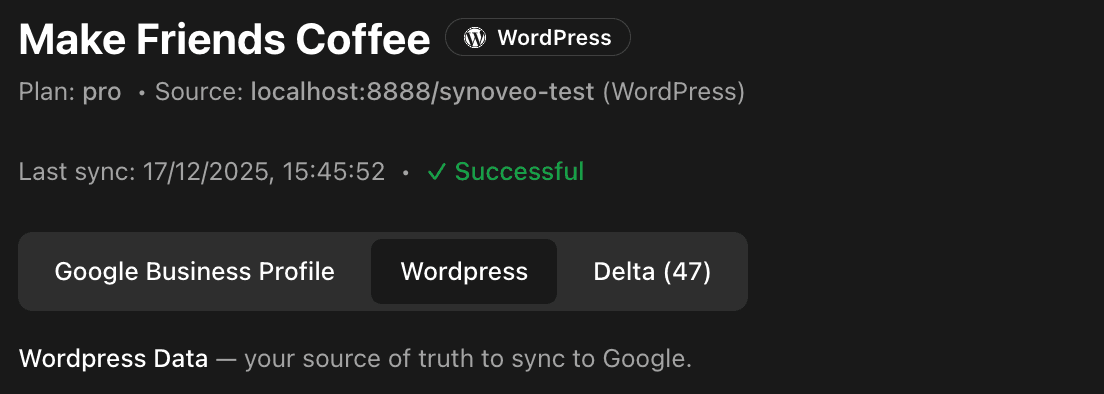
What you'll see:
- Business name, address, phone
- Opening hours
- Categories
- Attributes (WiFi, parking, etc.)
- Description
This is cached data. Click Refresh to pull the latest from Google.
Tab 2: Field Configuration (Source Tab)
The Source tab is where you tell Synoveo which WordPress plugin provides each GBP field.
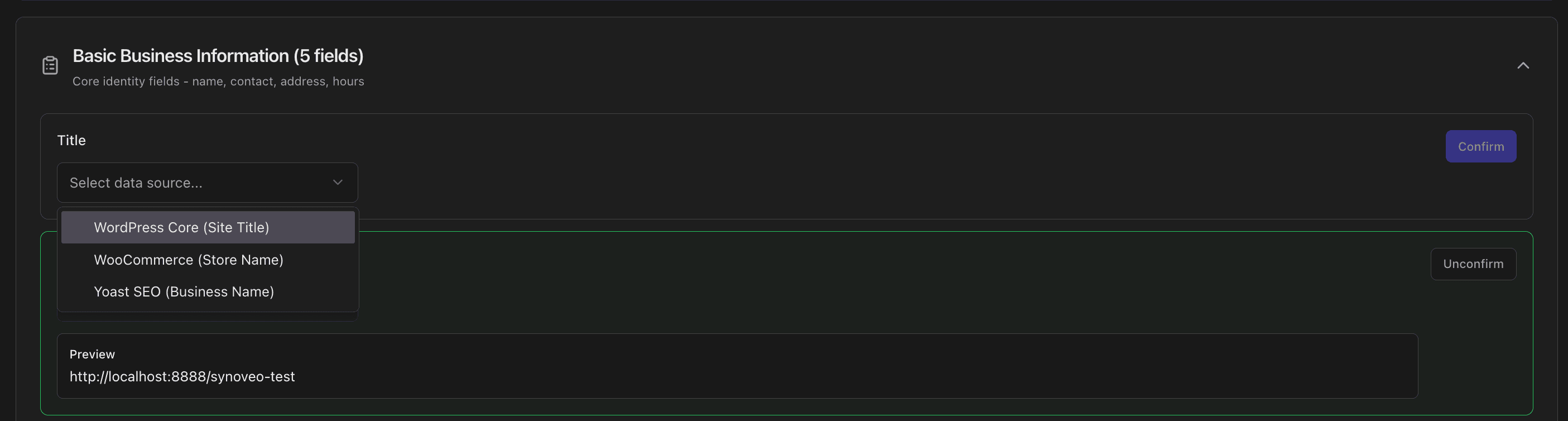
How Field Mapping Works
- GBP Field — The Google Business Profile field (e.g., "Business Name")
- Available Sources — WordPress plugins that can provide this data
- Confirmed Source — The source you've selected and confirmed
Configuring a Field
Expand a Category
Click on a category header (e.g., "Basic Business Information") to see its fields.
Select a Source
For each field, choose which WordPress plugin provides this data:
| Field | Common Sources |
|---|---|
| Business Name | Yoast SEO, WooCommerce, Site Title |
| Phone | Contact Form 7, ACF, Theme Options |
| Hours | Business Hours plugin, ACF |
| Description | Yoast SEO, Theme Options |
Preview the Value
After selecting a source, you'll see a preview of the actual data from WordPress.
Confirm the Mapping
Click Confirm to save this field mapping. Confirmed fields appear in the Delta tab.
Batch Preview
Click Refresh All Previews to fetch the latest values from all configured sources at once.
Tab 3: Delta View (Comparison & Sync)
The Delta tab shows differences between your WordPress data and Google data.
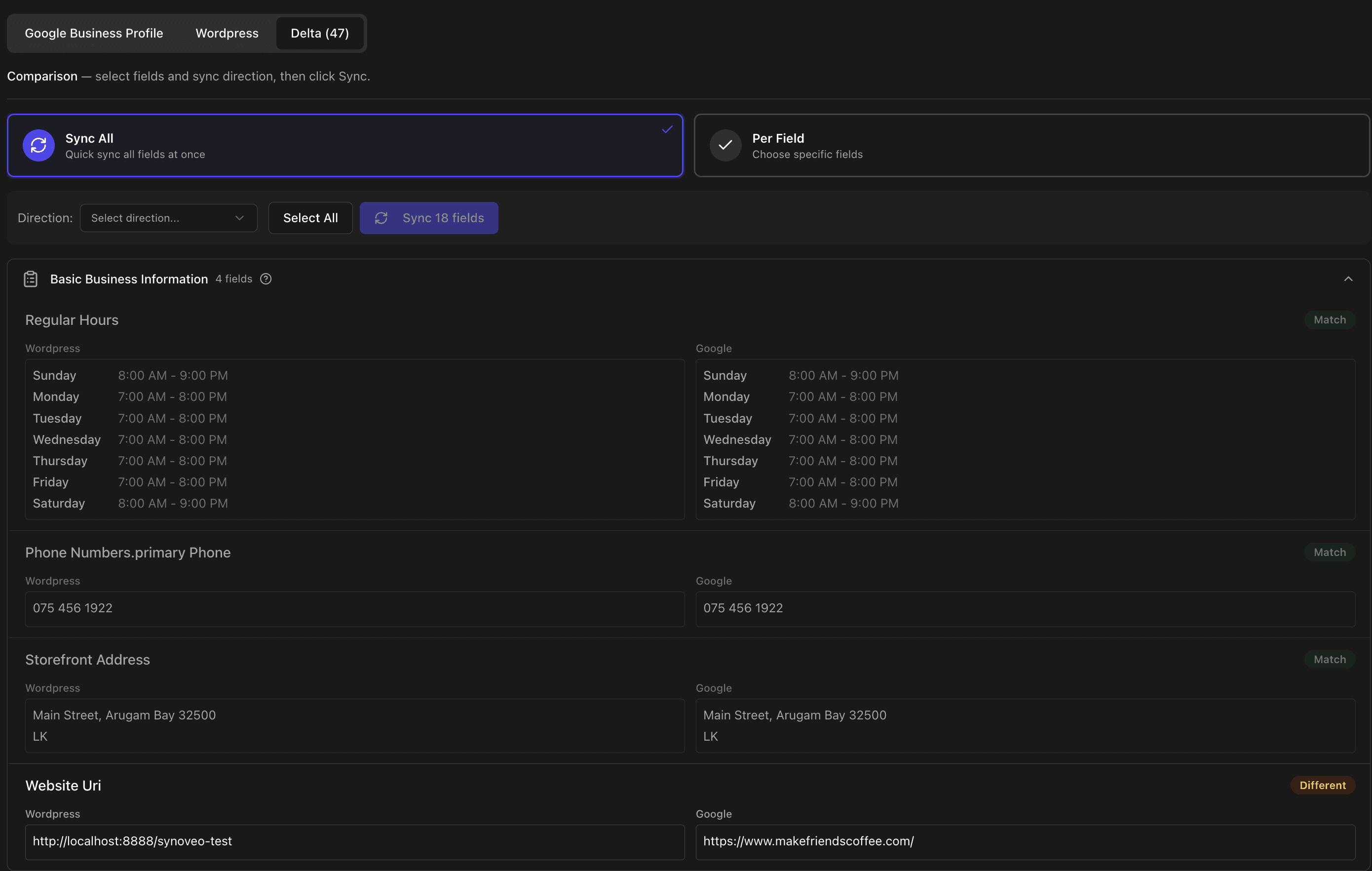
Understanding Status Badges
| Badge | Meaning |
|---|---|
| Match (green) | WordPress and Google have the same value |
| Different (orange) | Values differ — sync to update |
| New (blue) | Field exists in WordPress but not on Google |
Sync Modes
Sync All Mode — Quick bulk sync
- Select a direction (WordPress → Google)
- All different fields are auto-selected
- Click Sync to update everything at once
Best for: Initial sync, after major WordPress updates
Per Field Mode — Granular control
- Check individual fields you want to sync
- Set direction for each field (can differ per field)
- Click Sync Selected
Best for: Selective updates, testing individual fields
Sync Directions
| Direction | When to Use |
|---|---|
| WordPress → Google | Push your WordPress data to update Google (most common) |
| Google → WordPress | Pull Google data back to WordPress (rare, for recovery) |
Executing a Sync
Select Fields
In the Delta tab, check the fields you want to sync.
Choose Direction
Select WordPress → Google (or reverse if needed).
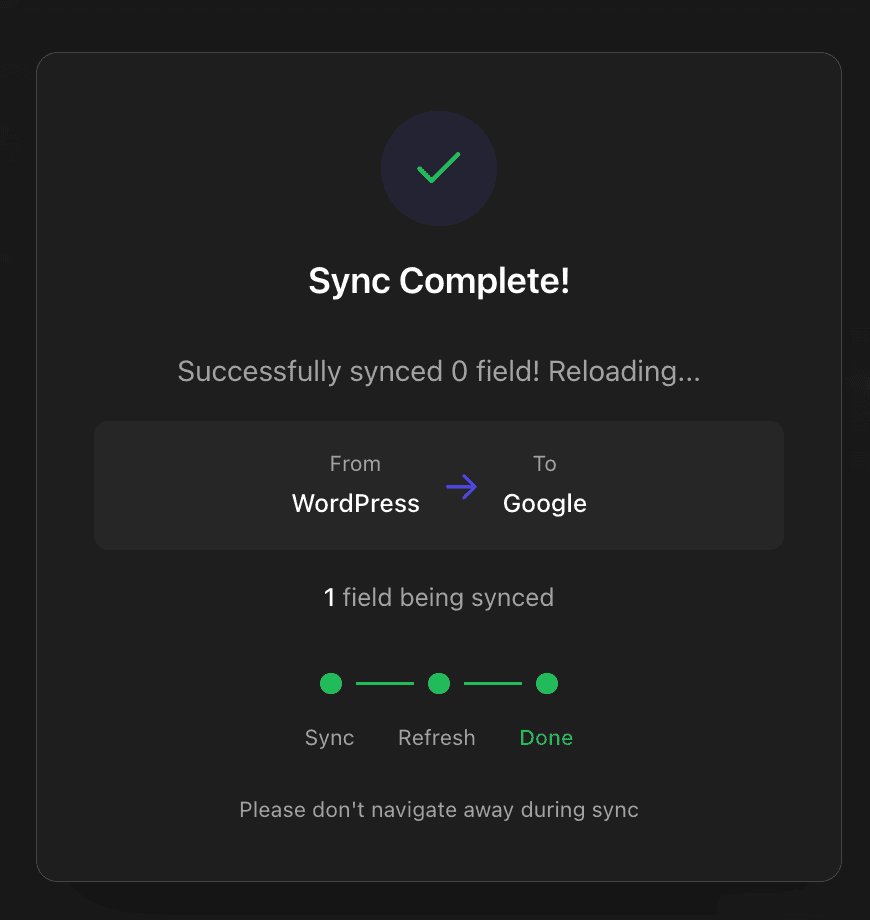
Wait for Completion
The progress overlay shows three phases:
- Syncing — Sending data to Google
- Refreshing — Updating cached data
- Done — Sync complete
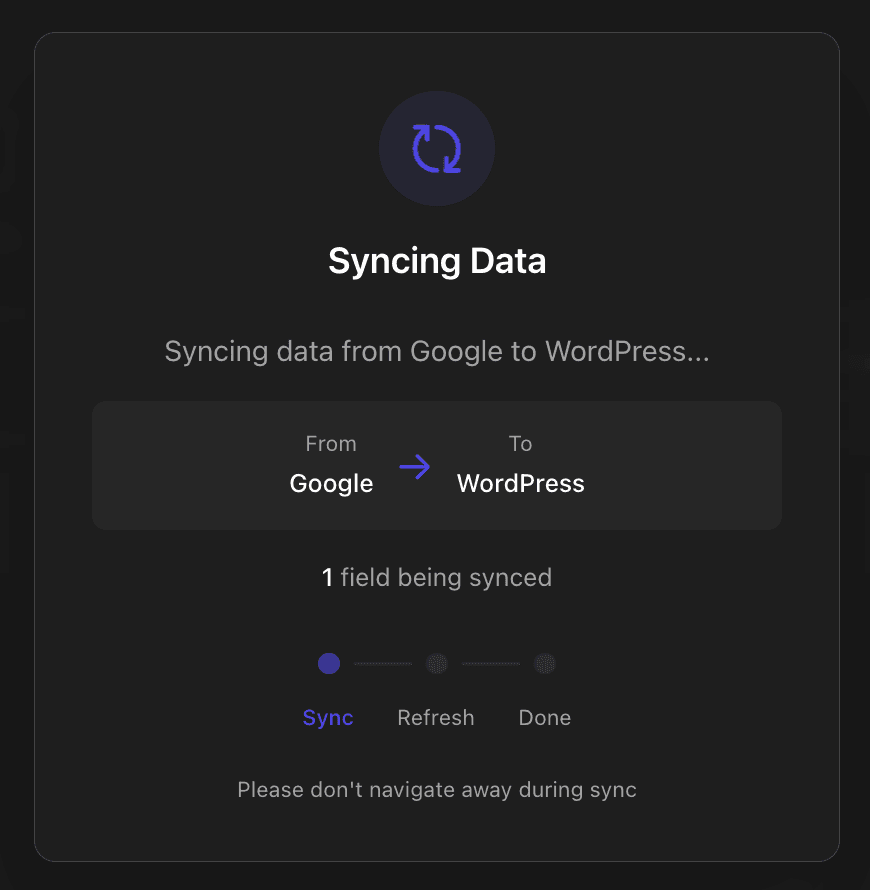
Don't navigate away during sync. Wait for the "Done" confirmation.
Field Categories Reference
Each category has specific fields and behaviors:
| Category | Fields | Notes |
|---|---|---|
| Basic Business Information | Name, phone, website, address, hours | Available on all plans |
| Profile Description | Business description (750 char max) | Solo+ plans |
| Categories | Primary + additional categories | Pro+ plans |
| Social Media | Facebook, Instagram, Twitter, etc. | Pro+ plans |
| Attributes | WiFi, parking, payments, accessibility | Pro+ plans, GBP-native only |
| Service Lists | Services with descriptions and pricing | Pro+ plans |
| Service Area | Geographic regions served | Pro+ plans |
| Place Actions | Booking, ordering, shopping links | Pro+ plans |
| Lodging Amenities | Hotel-specific features | Business plan, hotels only |
Locked fields? Some categories require a higher plan. See Compare Plans.
Best Practices
- Start with Basic Info — Sync name, phone, address first
- Verify before bulk sync — Use Per Field mode to test a few fields
- Check Google after sync — Confirm changes appear (1-2 min delay)
- Keep WordPress updated — Sync pulls from your live WordPress data
- Use Batch Preview — Refresh all previews before syncing to ensure data is current
Troubleshooting
"No Source Data"
The Source tab shows "No Source Data Yet":
- WordPress plugin may not be sending data
- API key may not be configured correctly
- Click Refresh from Source to retry
"Sync Failed"
Check the error message:
- RATE_LIMITED — Wait 1 hour and retry
- INVALID_FIELD — Data format issue, check the value
- PERMISSION_DENIED — Field not in your plan
See Sync Troubleshooting for more.
Fields Not Appearing in Delta
- Field source not confirmed in Source tab
- Field may already match (check "Match" status)
- Category may be locked (upgrade required)