API Keys
Create and manage API keys to connect platforms to Synoveo
API keys authenticate your platforms (WordPress, custom apps) with Synoveo. Each key is scoped to a specific location and domain.
Prerequisites
Before creating an API key:
- Location sync enabled — The location must have sync turned ON in the Locations page
- Verified Google location — The location must be verified on Google Business Profile
Creating an API Key
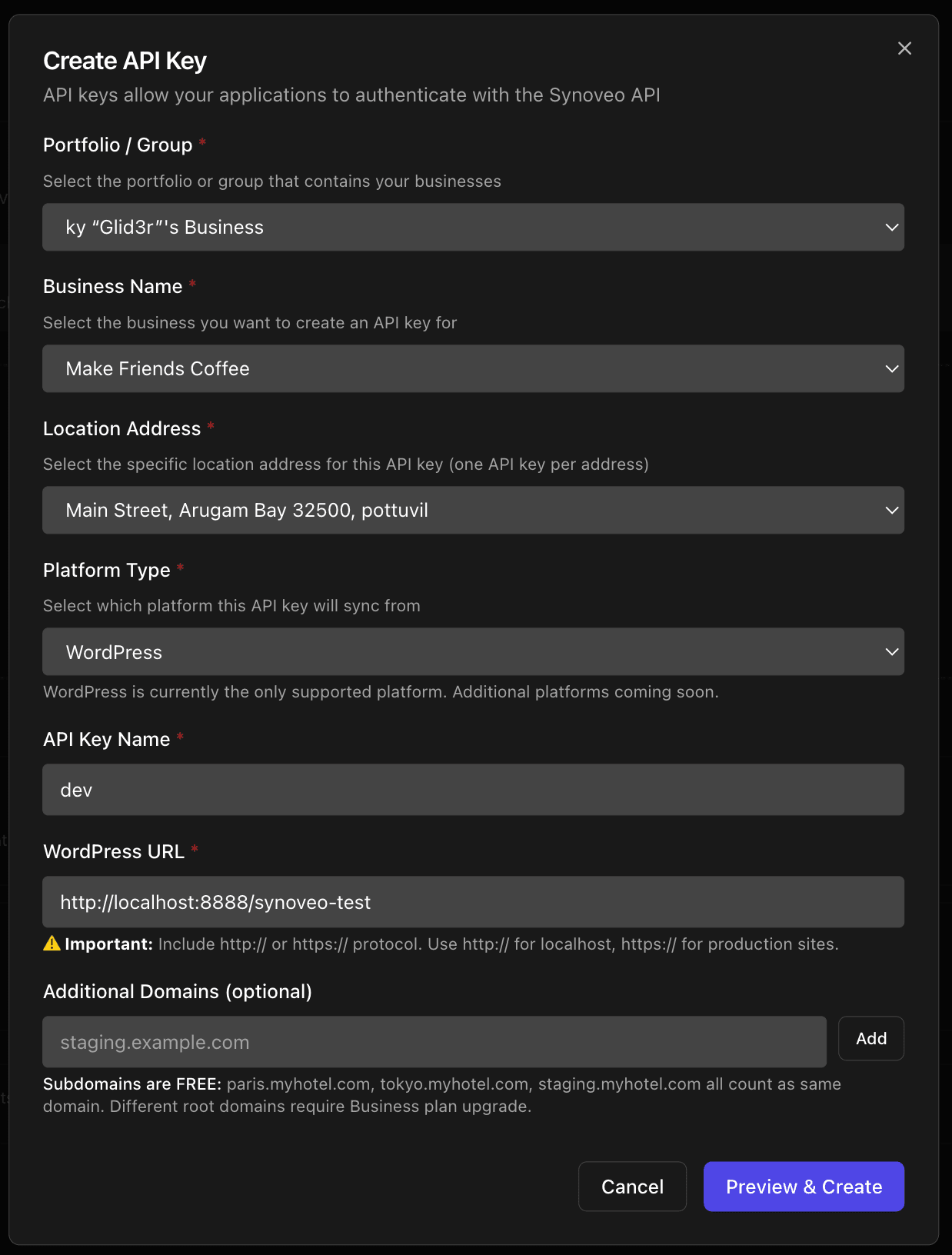
Configure the Key
Fill in the required fields:
| Field | Description |
|---|---|
| Platform | Select your platform (WordPress, Custom, etc.) |
| Location | Choose which Google location this key connects to |
| Domain | Your website URL (e.g., https://example.com) |
Only locations with sync enabled appear in the dropdown.
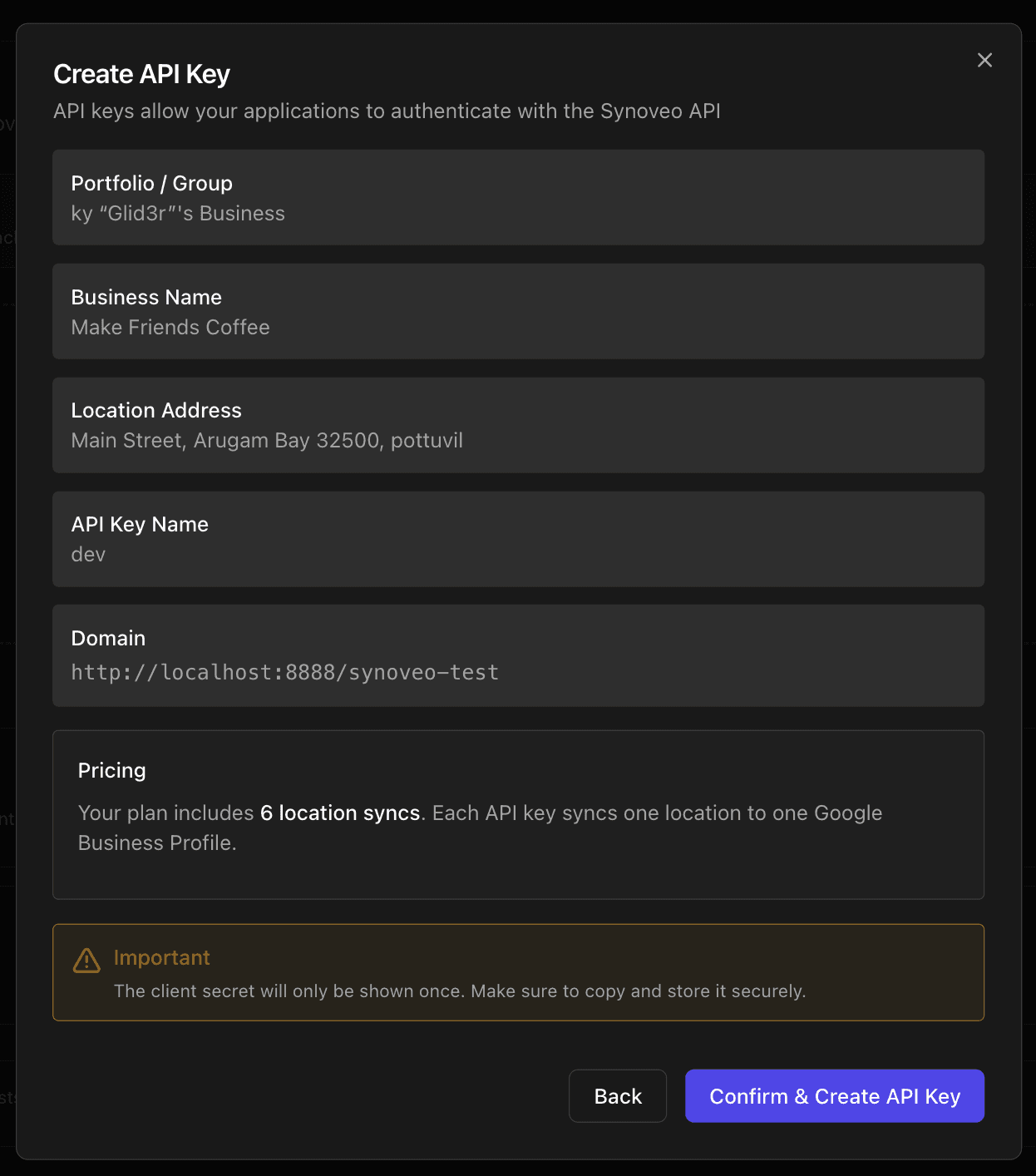
Copy Your Credentials
Copy both the Client ID and Client Secret.

Save your Client Secret now — it's only shown once! If you lose it, you'll need to create a new API key.
Managing API Keys
Viewing Keys
The API Keys page shows all your keys with:
- Platform type
- Associated location
- Domain
- Creation date
- Status (active/revoked)
Revoking a Key
To revoke an API key:
- Find the key in the list
- Click the Revoke button
- Confirm the action
Revoking a key immediately disconnects the associated platform. The platform will need a new key to reconnect.
Using API Keys
WordPress
Enter your Client ID and Client Secret in Synoveo → Dashboard in your WordPress admin.
See WordPress Quick Start for detailed setup.
Custom Integrations
Use the credentials with the Synoveo API:
curl -X POST https://api.synoveo.com/v1/sync \
  -H "X-Client-ID: your_client_id" \
  -H "X-Client-Secret: your_client_secret" \
  -H "Content-Type: application/json" \
  -d '{"fields": {...}}'
Troubleshooting
"Location not available"
The location doesn't appear in the dropdown:
- Ensure sync is enabled for the location in the Locations page
- Verify the location is verified on Google
"Domain mismatch"
The API key was created for a different domain:
- Create a new key with the correct domain
- Or update your site URL to match
"Invalid credentials"
The Client ID or Secret is incorrect:
- Double-check both values
- Ensure no extra spaces when copying
- If lost, create a new API key