Setup & Configuration
Configure the Synoveo WordPress plugin to connect with your Google Business Profile
After installing the plugin, you need to generate API credentials from the Synoveo Hub and configure your WordPress site.
Step 1: Sign in to Synoveo Hub
Go to app.synoveo.com and sign in with your Google account.
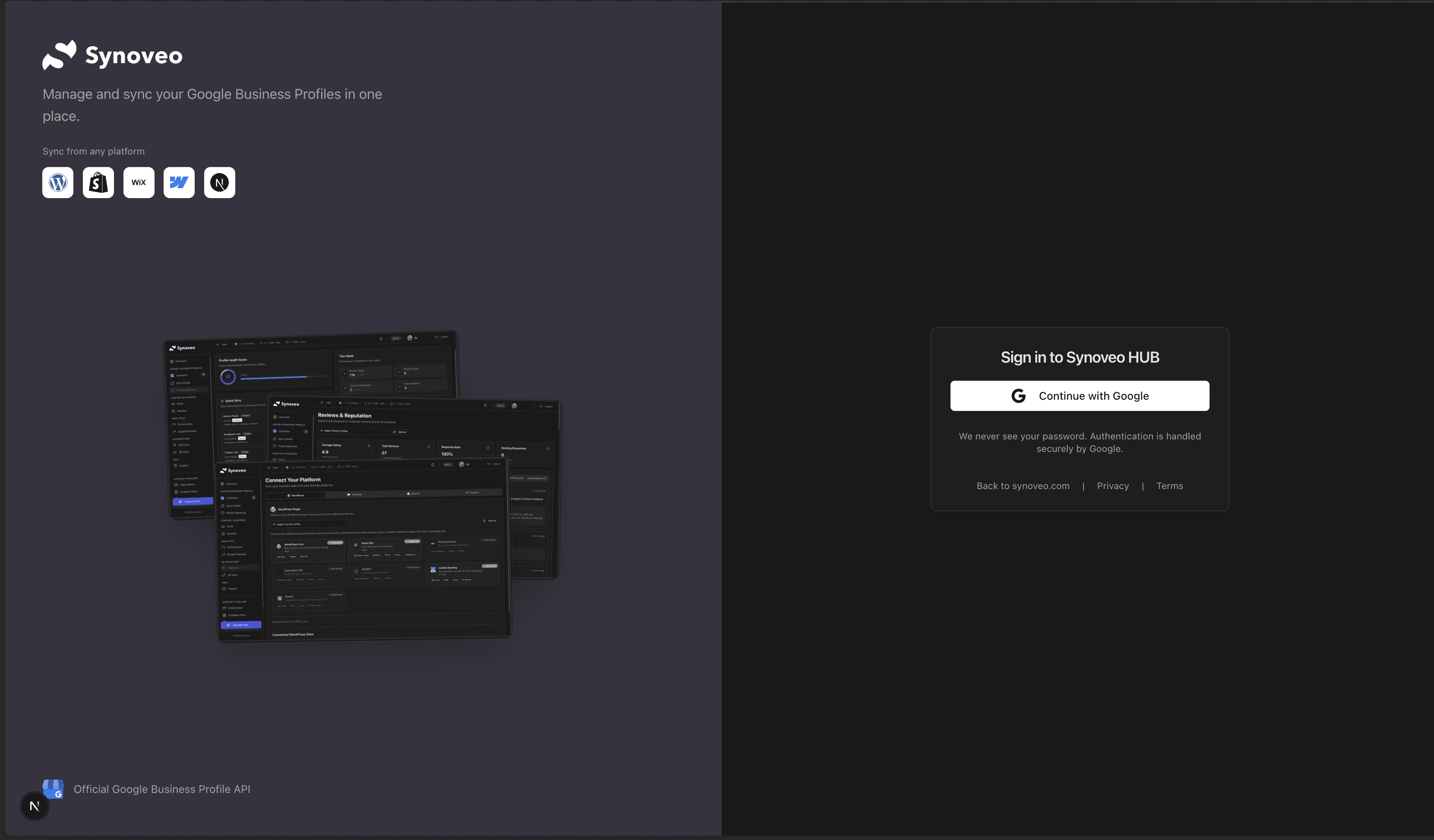
Synoveo uses Google OAuth for authentication. You'll be signed in directly with your Google account - no separate registration required.
Step 2: Connect Your Google Business Profile
After signing in, navigate to Locations to connect and manage your Google Business Profile locations.
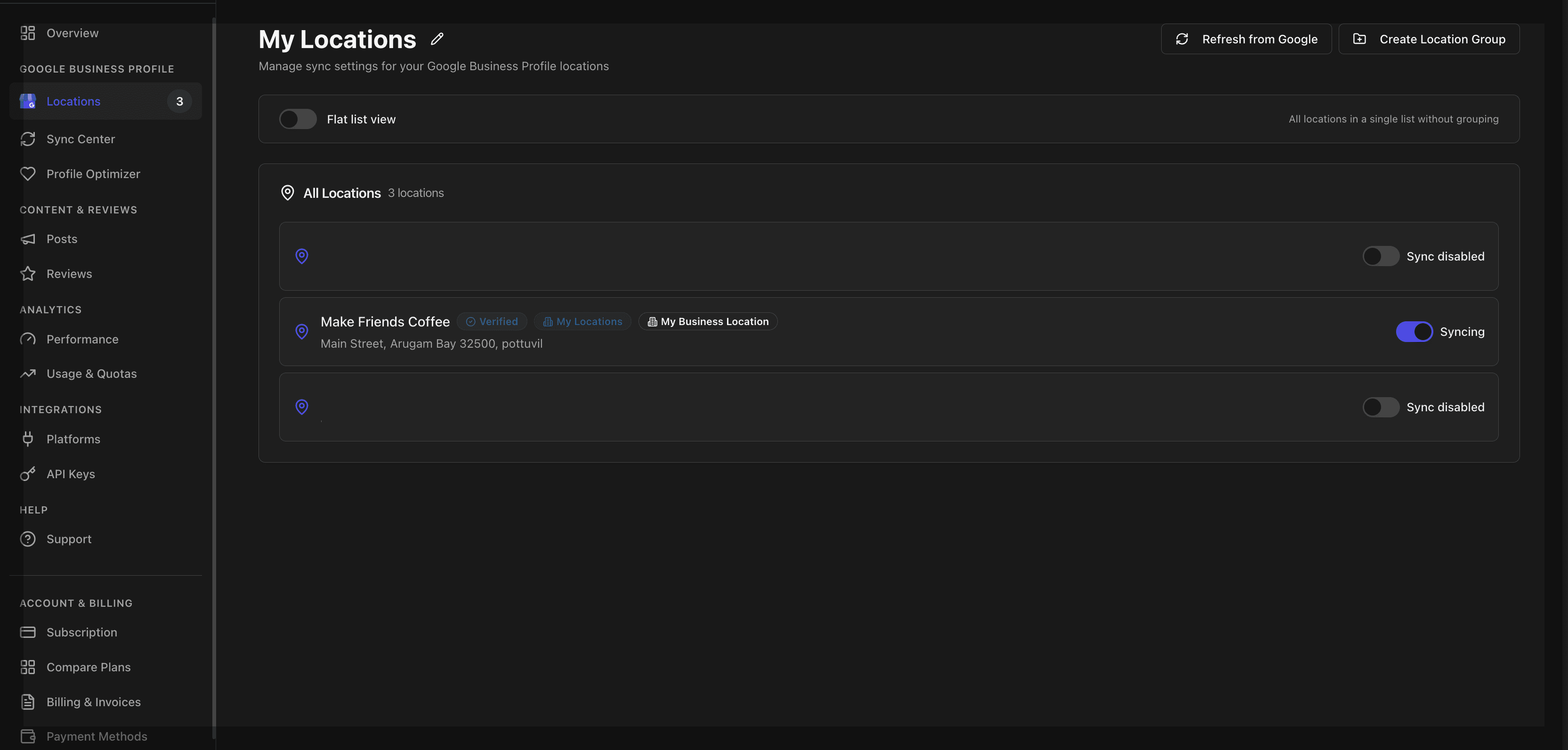
Enable Sync for Your Location
Before creating an API key, you must enable sync for the location you want to connect to WordPress:
- Find your location in the list
- Toggle the Sync switch to ON
- The location must be verified in Google Business Profile
Only locations with sync enabled will appear in the API key creation modal. Make sure to toggle sync ON before proceeding.
Step 3: Generate API Credentials
Navigate to API Keys
Click API Keys in the sidebar, then click Create API Key
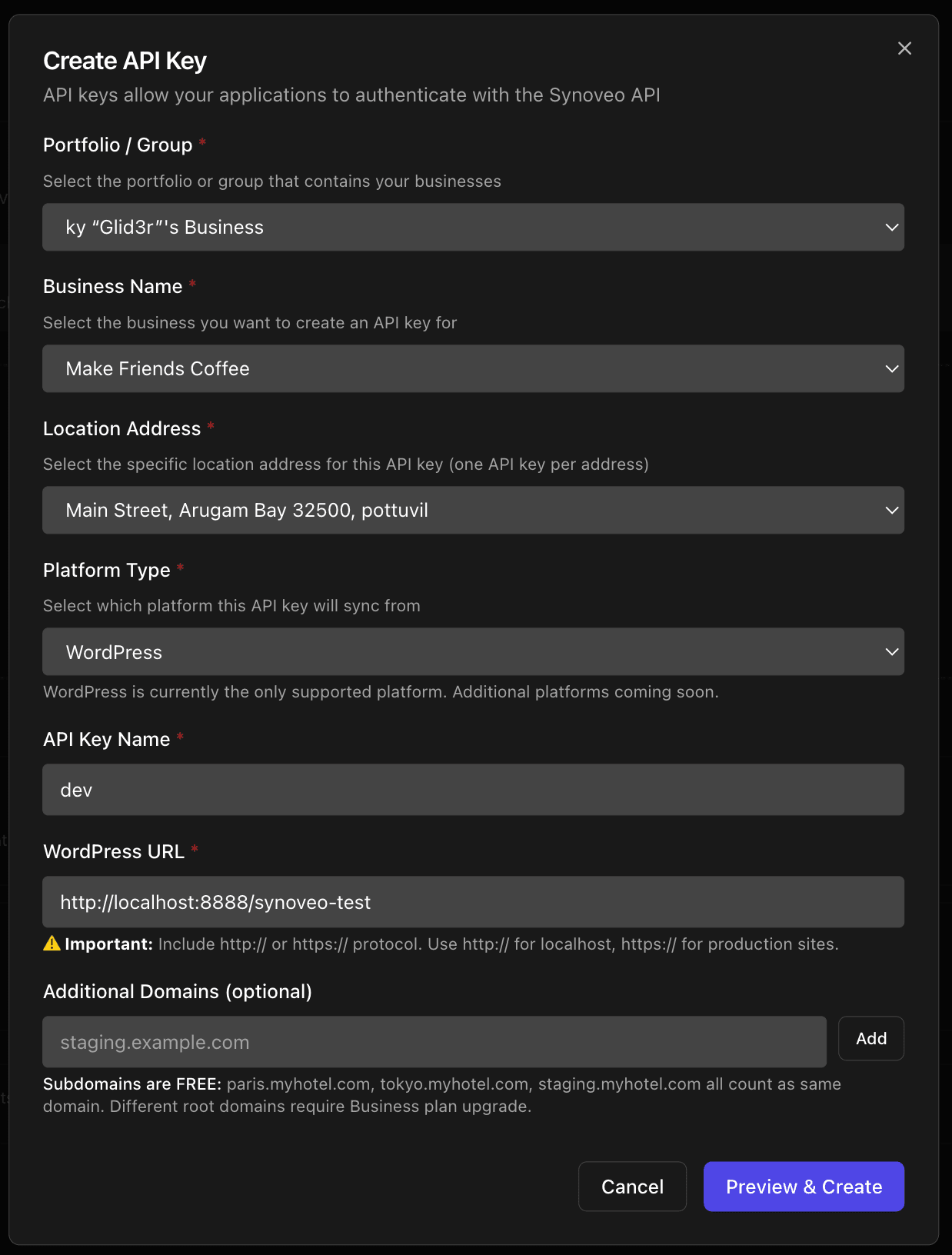
Configure your API key:
- Platform: Select WordPress
- Location: Choose the Google location to sync (only locations with sync enabled appear)
- Domain: Your WordPress site URL
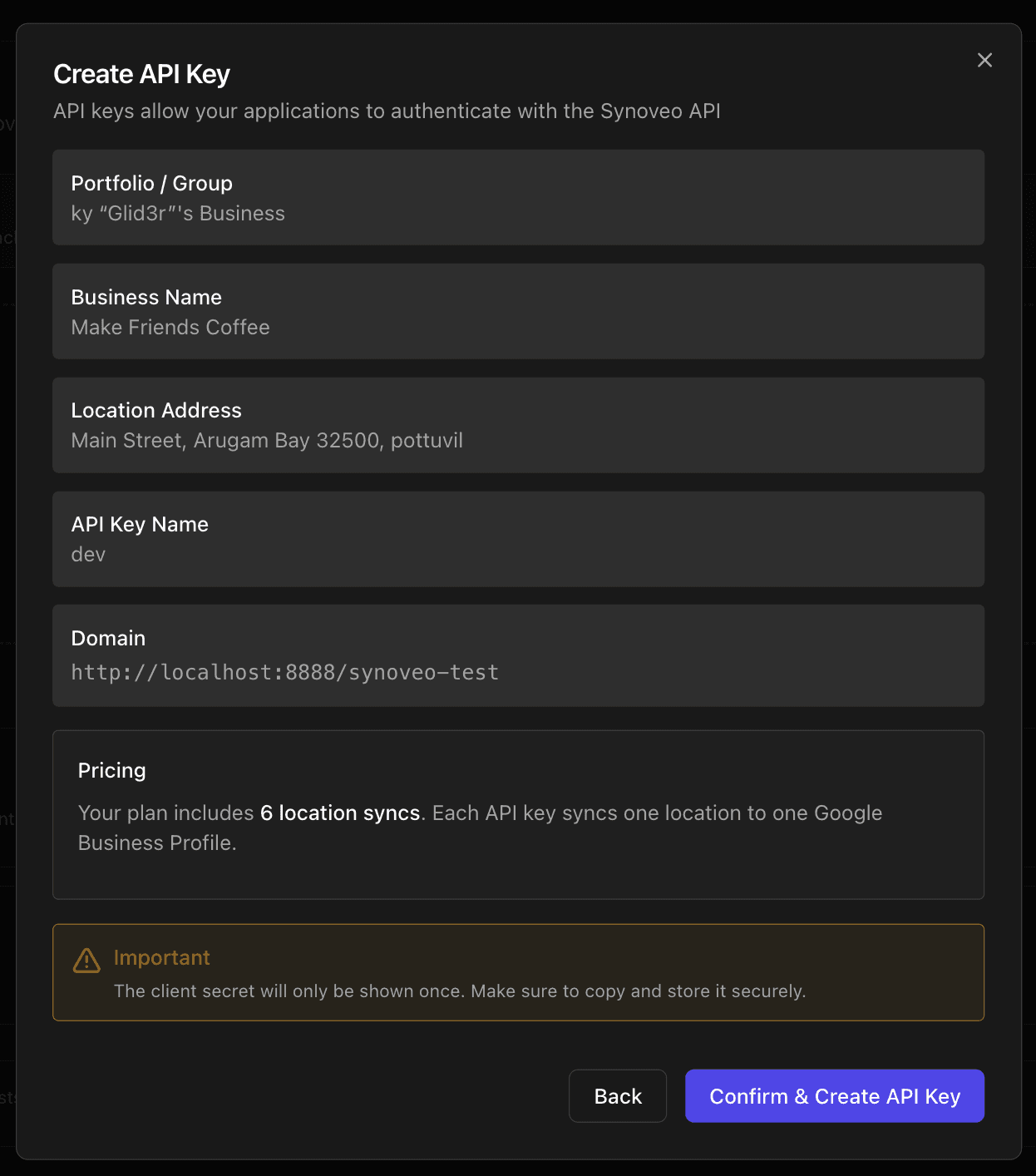
Copy Your Credentials
Copy the Client ID and Client Secret displayed.

Important: The Client Secret is only shown once. Save it securely before closing this dialog!
Step 4: Configure WordPress
Open Synoveo Dashboard
In WordPress admin, go to Synoveo → Dashboard. You'll see the disconnected state initially.
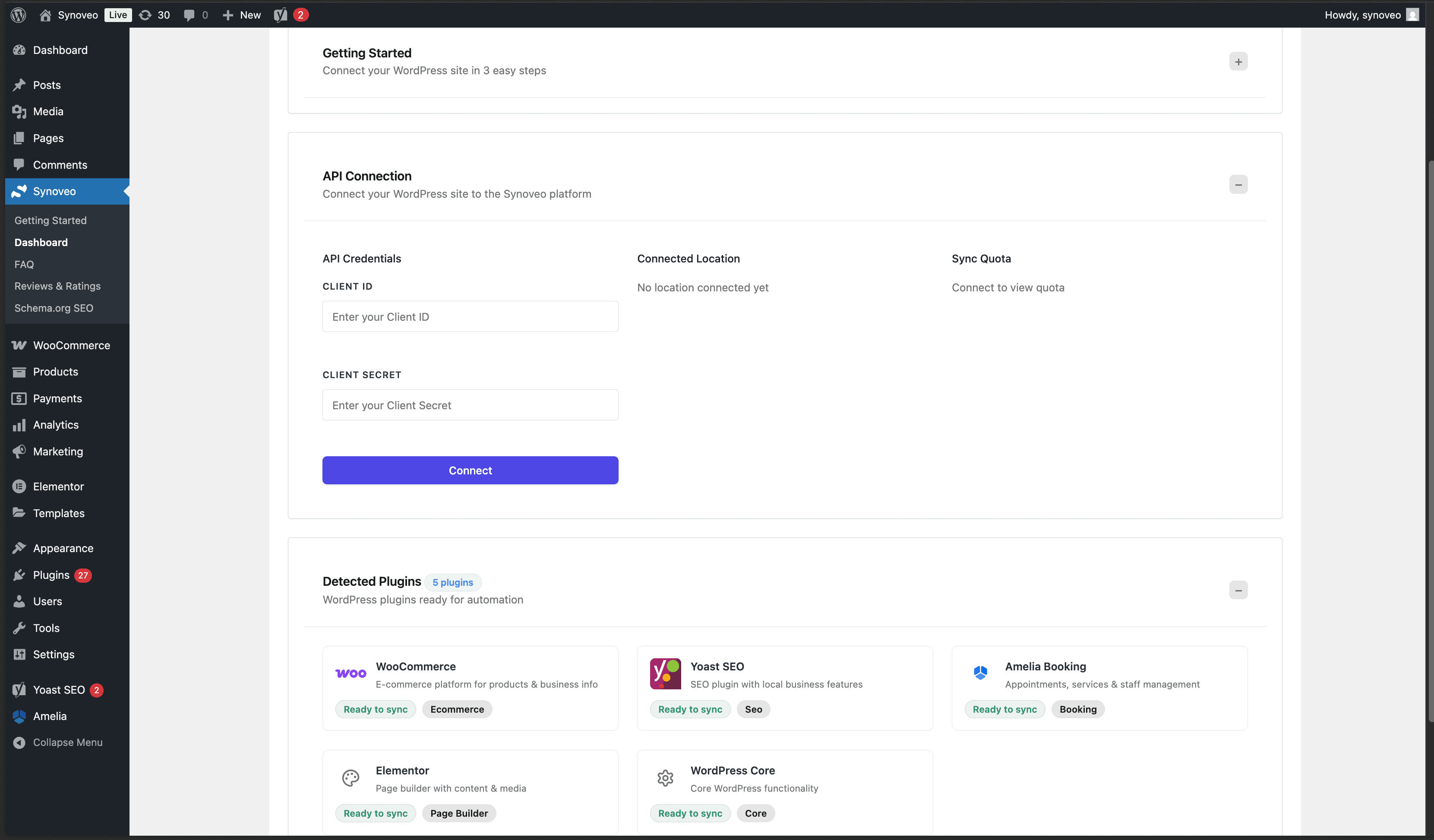
Connect
Click Connect to establish the connection.
Verify Connection
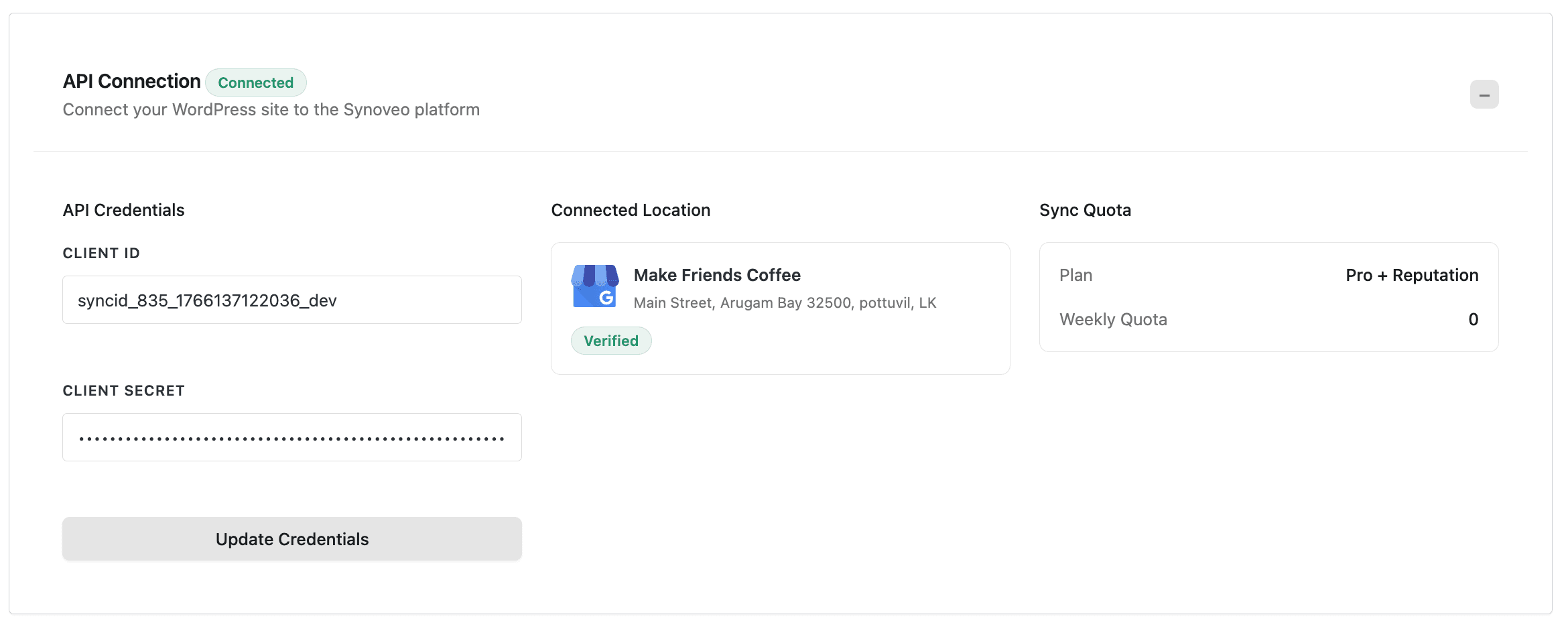
You should see the connected state with your Google Business Profile location details.
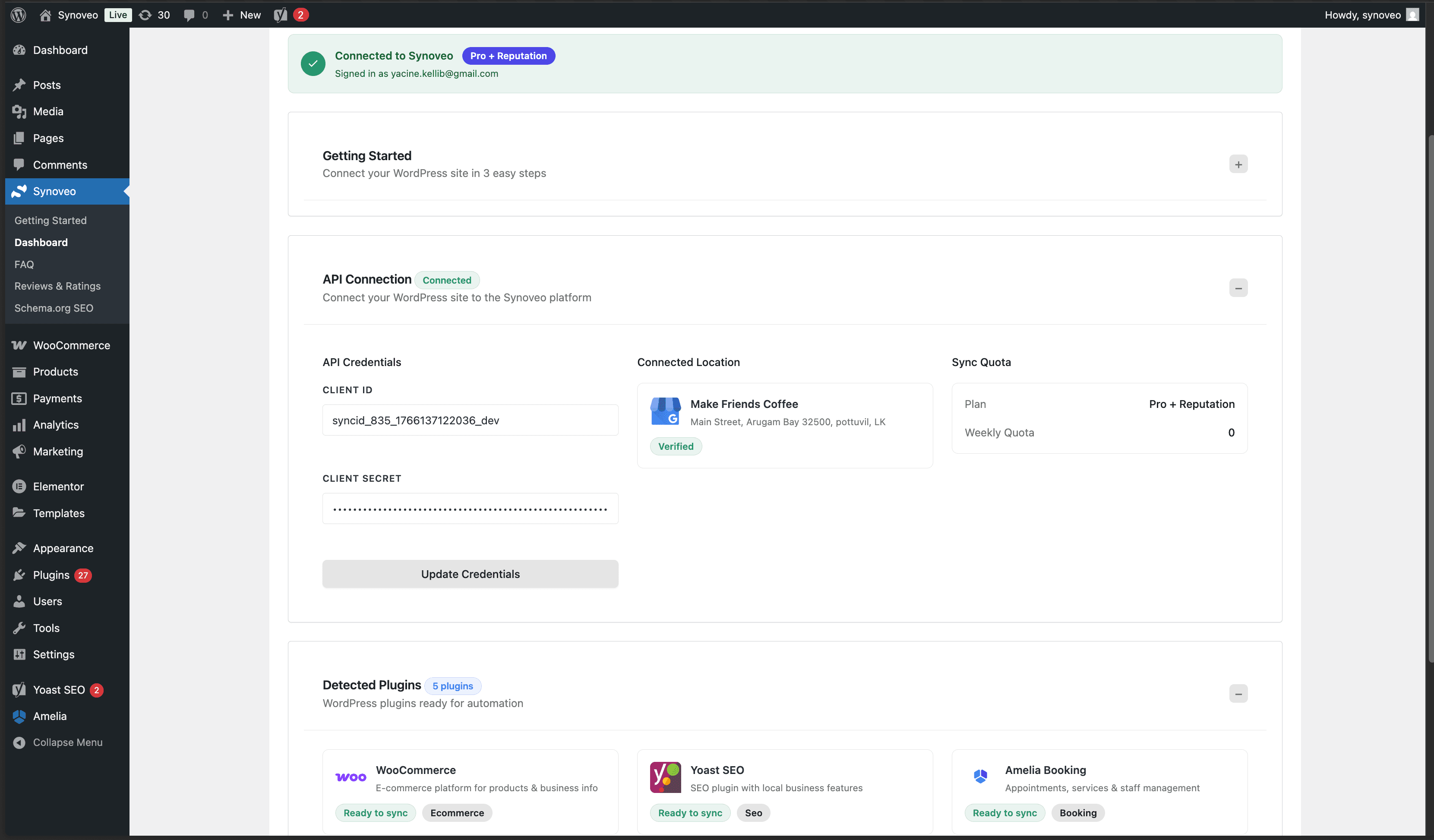
The dashboard shows:
- Your connected location name
- Verification status
- Last sync time
- Quick actions for syncing
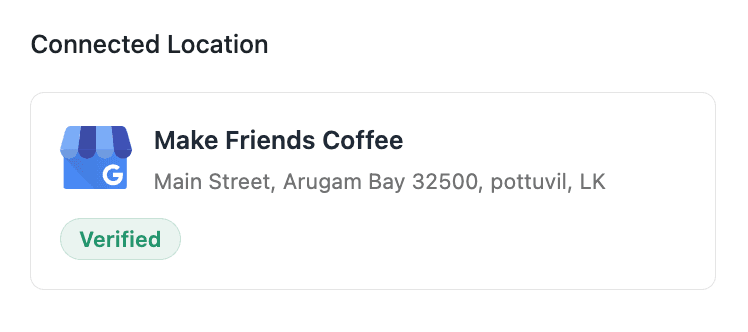
Verified Location Indicator
When your location is properly verified with Google, you'll see a verification badge:
Detected Plugins
Synoveo automatically detects compatible WordPress plugins and extracts relevant data:
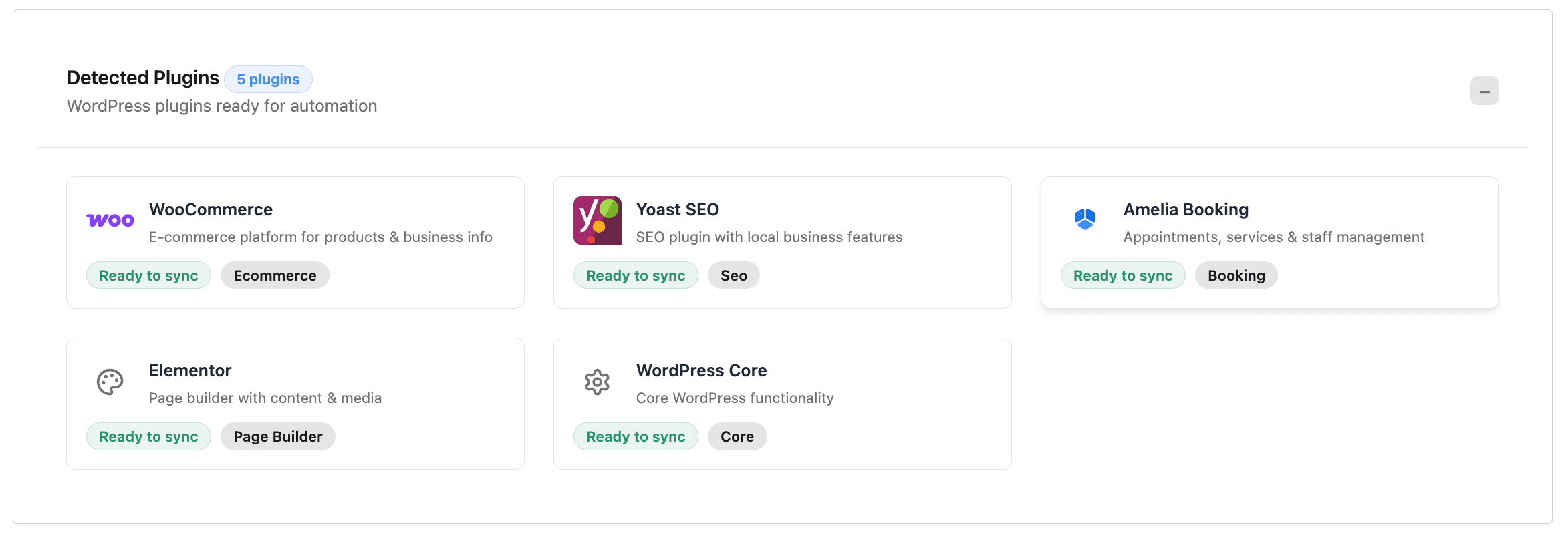
Supported plugins include:
- WooCommerce - Products, categories, business hours
- Yoast SEO - Business name, address, social profiles
- Rank Math - Business schema, local SEO data
- Amelia - Services, booking info
- Bookly - Services, pricing
- Events Calendar - Events for Google Posts
Subscription Plans
Synoveo offers different plans with varying features. View and compare plans in the Hub:
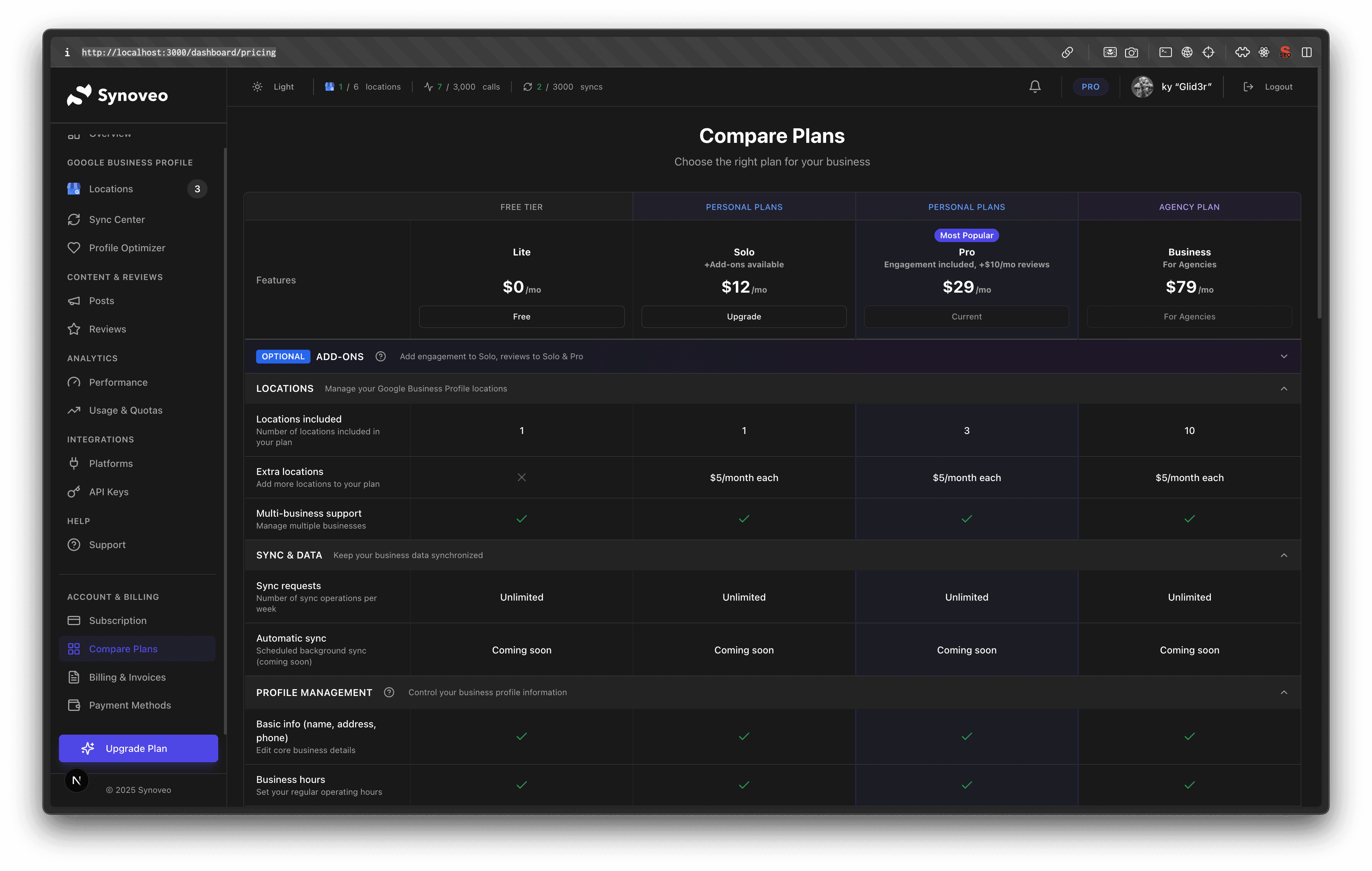
| Plan | Locations | Features |
|---|---|---|
| Lite | 1 | Basic business info sync |
| Solo | 1 | Complete profile management |
| Pro | 3 | Posts, reviews, Q&A |
| Business | 10 | Analytics, insights, unlimited |
Settings Reference
| Setting | Description | Default |
|---|---|---|
| Client ID | Your Synoveo API Client ID | (required) |
| Client Secret | Your Synoveo API Secret | (required) |
| Auto-Sync | Sync automatically on content changes | Off |
| Debug Mode | Enable verbose logging | Off |
Troubleshooting Connection
If you're having trouble connecting:
- Verify credentials - Make sure you copied both Client ID and Secret correctly
- Check location sync - Ensure sync is enabled for your location in the Hub
- Domain match - The domain in your API key must match your WordPress site URL
- Clear cache - Clear any caching plugins that might interfere