Plugin Integrations
Supported WordPress plugins and what data Synoveo extracts
Synoveo automatically detects popular WordPress plugins and extracts relevant business data to keep your Google Business Profile in sync.
How It Works
When you connect Synoveo to WordPress:
- Synoveo scans your installed plugins
- Detects supported plugins automatically
- Extracts business data (hours, services, products, etc.)
- Uses this data to keep your GBP profile accurate
No configuration needed - if you have a supported plugin, Synoveo uses it.
Supported Plugins
SEO Plugins
These plugins often contain your business information (name, address, hours).
Yoast SEO
What Synoveo extracts:
- Business name and type
- Address and phone number
- Opening hours
- Social profiles (Facebook, Twitter, etc.)
Requirements: Yoast SEO 18.0+ with Local SEO data configured
Rank Math
What Synoveo extracts:
- Local business schema data
- Business name and type
- Address and contact info
- Opening hours
Requirements: Rank Math 1.0+ with Local SEO module enabled
All in One SEO (AIOSEO)
What Synoveo extracts:
- Local business information
- Address
- Phone number
Requirements: AIOSEO 4.0+ with Local Business schema configured
E-Commerce
WooCommerce
What Synoveo extracts:
- Products and services (for GBP Products)
- Product categories
- Store address
- Business hours (if configured)
Requirements: WooCommerce 5.0+ with at least one published product
Booking & Appointments
Amelia
What Synoveo extracts:
- Services with descriptions
- Service duration and pricing
- Staff/provider information
Requirements: Amelia 1.0+ with at least one service configured
Bookly
What Synoveo extracts:
- Services
- Service pricing
- Duration
Requirements: Bookly 20.0+
Events
The Events Calendar
What Synoveo extracts:
- Event titles and descriptions
- Event dates and times
- Venue information
Use case: Events can be converted to Google Posts via Auto-Post.
Requirements: The Events Calendar 5.0+
Data Priority
When multiple plugins provide the same information, Synoveo uses this priority:
| Priority | Source |
|---|---|
| 1 | Manual override (set in Synoveo dashboard) |
| 2 | Primary SEO plugin (Yoast > Rank Math > AIOSEO) |
| 3 | WooCommerce |
| 4 | Booking plugins |
| 5 | WordPress core settings |
You can customize this in Synoveo → Settings → Data Sources.
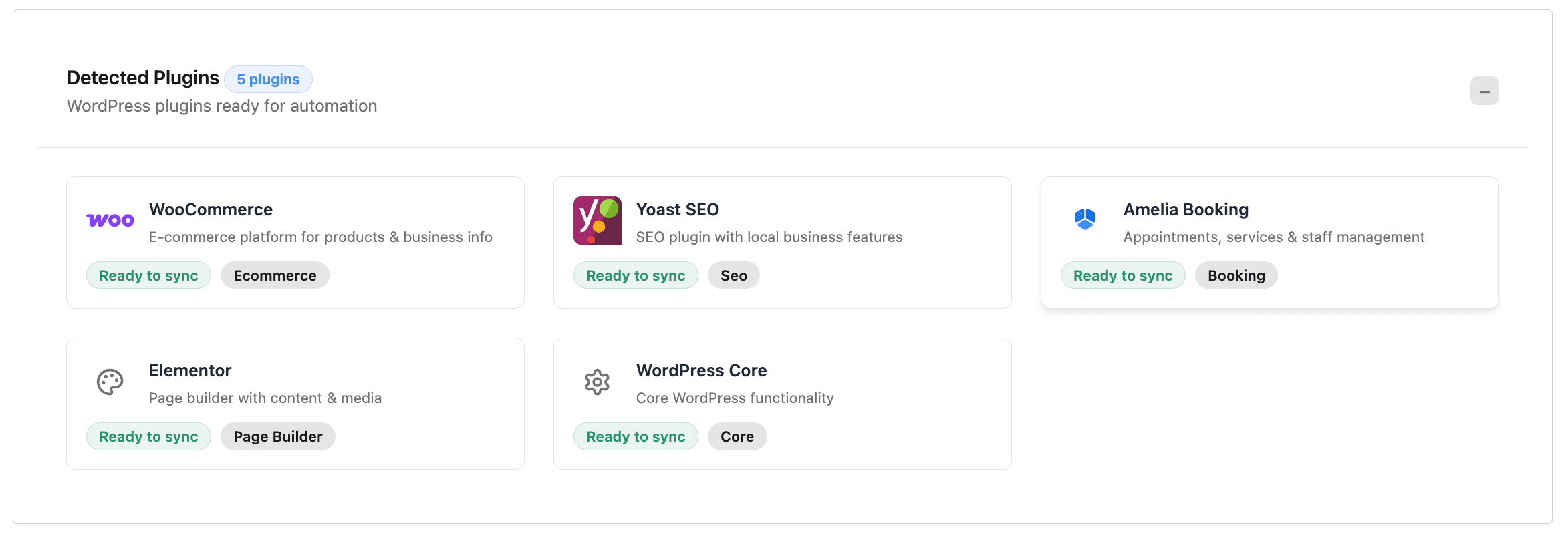
Viewing Detected Plugins
To see which plugins Synoveo detected:
- Go to Synoveo → Dashboard in WordPress admin
- Look for the "Detected Plugins" section
- Green checkmarks indicate active integrations
Request a New Integration
Don't see your plugin listed? We're always adding new integrations.
Request a plugin integration by emailing support@synoveo.com with:
- Plugin name and link
- What data you'd like Synoveo to extract
- Your use case
Popular requests are prioritized for future releases.