Schema.org SEO (HyperSEO)
Generate and validate Schema.org structured data for better search visibility
Synoveo's HyperSEO feature automatically generates Schema.org JSON-LD structured data for your WordPress site, helping search engines better understand your business.
What is Schema.org?
Schema.org is a collaborative vocabulary used by search engines to understand web content. Adding structured data helps:
- Improve search result appearance with rich snippets
- Increase click-through rates
- Provide accurate business information to Google
Accessing Schema Settings
Navigate to Synoveo → Schema.org SEO in your WordPress admin to access the HyperSEO settings.
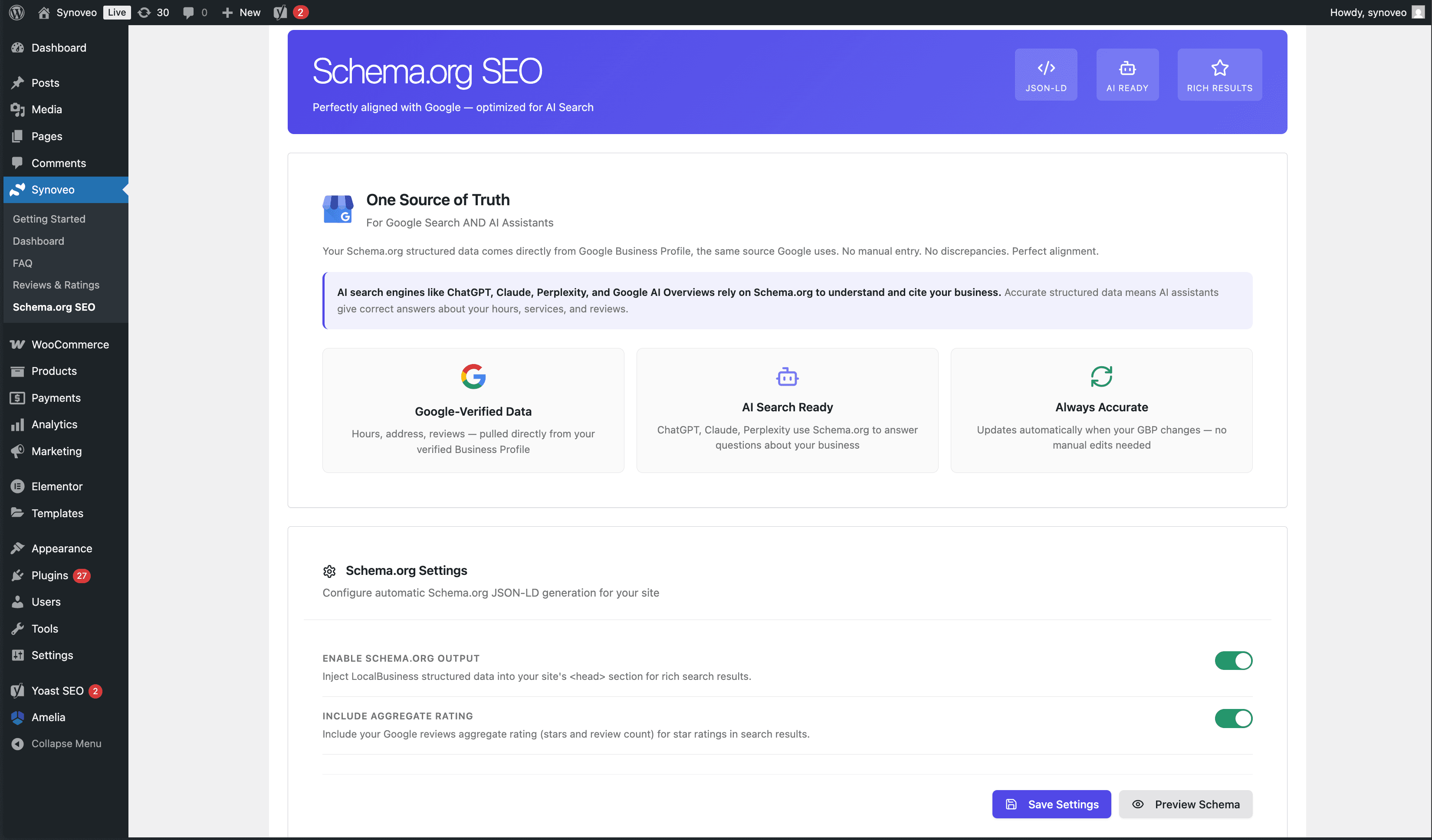
Configuration Options
Business Type
Select the Schema.org type that best describes your business:
- LocalBusiness (default)
- Restaurant
- Store
- ProfessionalService
- MedicalBusiness
- And many more...
Business Information
Configure the core business details:
- Business name
- Description
- Address (street, city, state, zip, country)
- Phone number
- Website URL
- Email address
Opening Hours
Set your business hours for each day of the week. These are included in the schema output.
Social Profiles
Add links to your social media profiles:
- Twitter/X
- YouTube
Schema Preview
Preview your generated JSON-LD structured data before publishing:
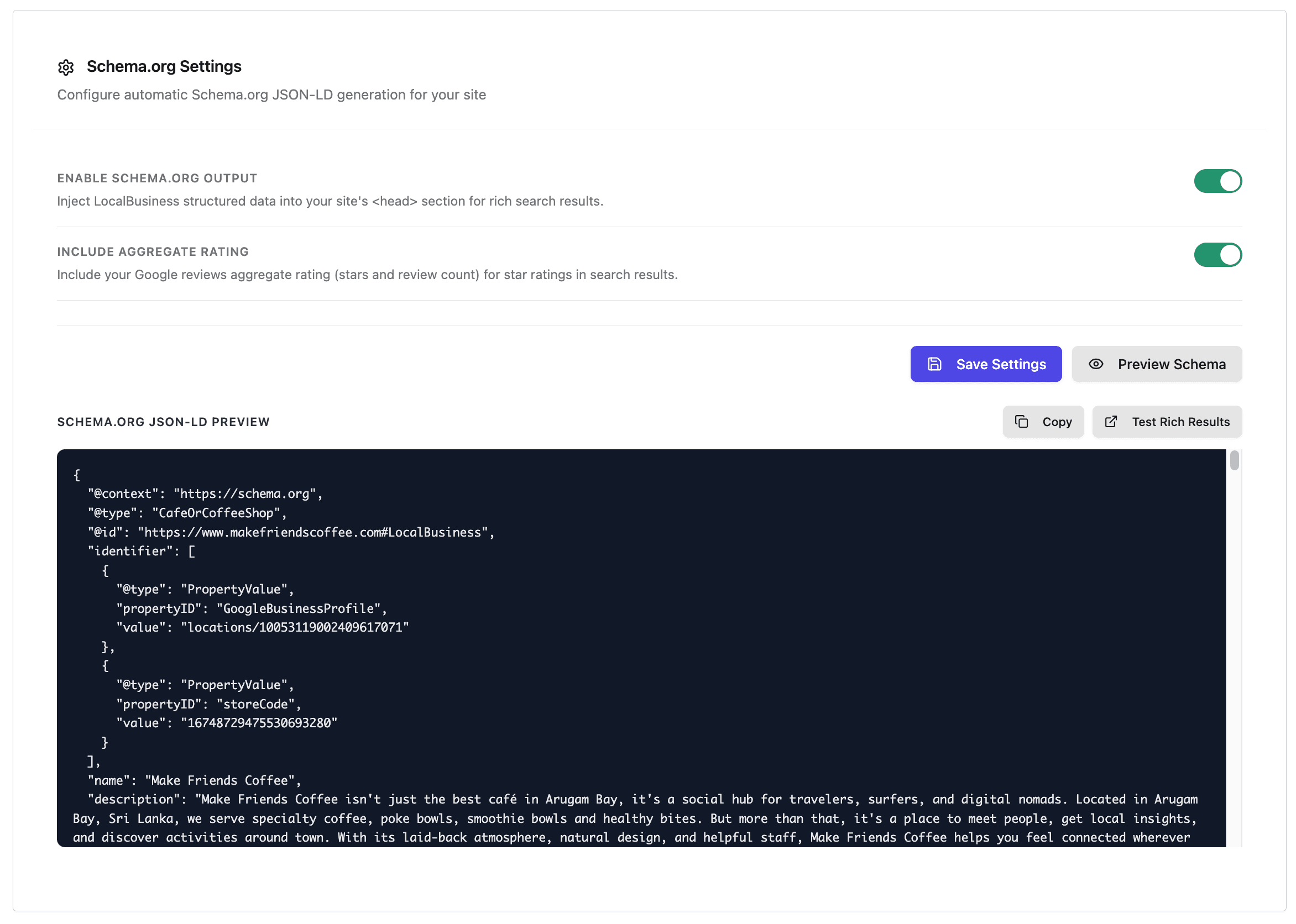
The preview shows exactly what will be added to your site's HTML. You can verify:
- All fields are populated correctly
- Business type is accurate
- Hours and contact info are formatted properly
Testing Your Schema
Copy for Testing
Use the copy button to grab your schema JSON-LD for testing:

Google Rich Results Test
Paste your schema into Google's Rich Results Test to validate:
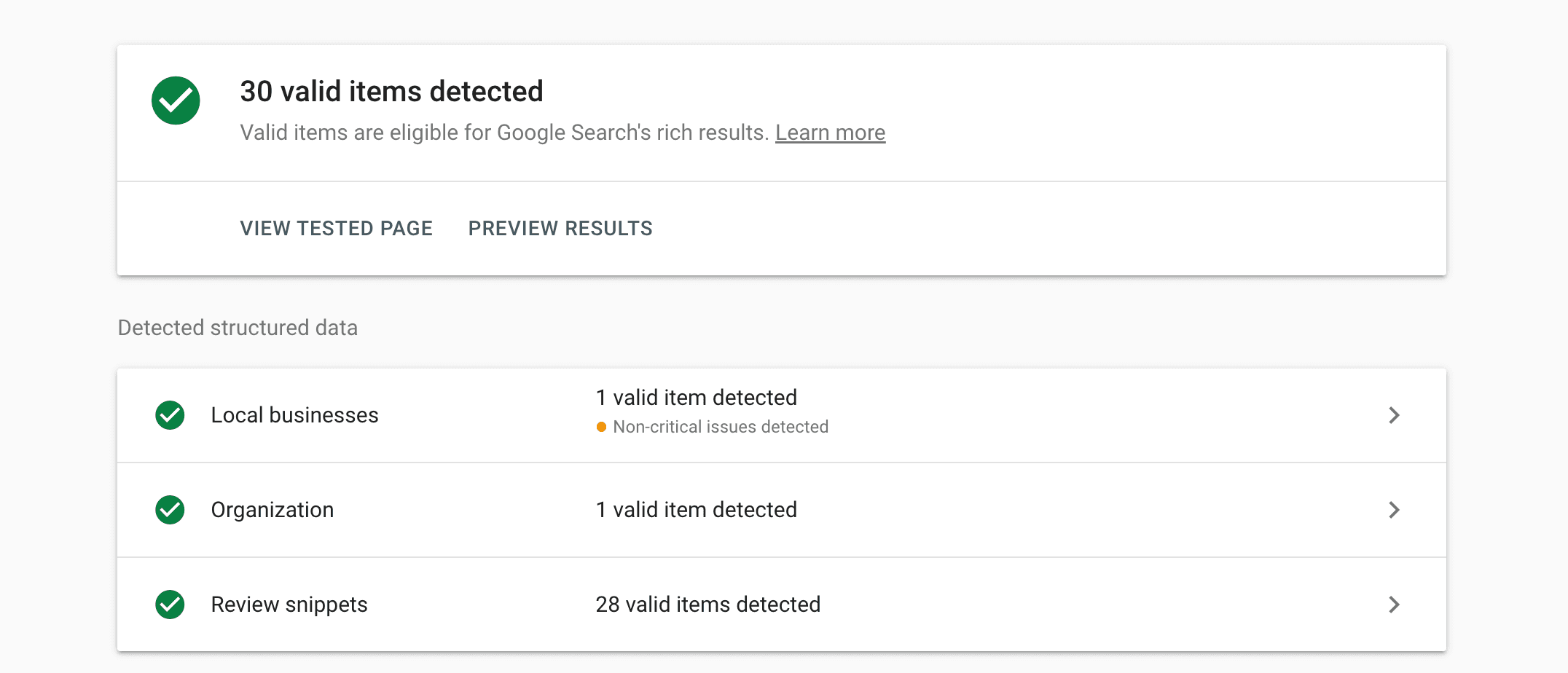
Google will show:
- Whether your schema is valid
- Any warnings or errors
- A preview of how it may appear in search results
Schema Types Supported
Synoveo generates the following Schema.org types:
| Type | Use Case |
|---|---|
| LocalBusiness | Default for most businesses |
| Restaurant | Restaurants, cafes, bars |
| Store | Retail stores |
| ProfessionalService | Lawyers, accountants, consultants |
| MedicalBusiness | Doctors, dentists, clinics |
| LodgingBusiness | Hotels, B&Bs |
| FoodEstablishment | Food service businesses |
| HealthAndBeautyBusiness | Spas, salons |
Generated Markup
Example of generated JSON-LD:
{
  "@context": "https://schema.org",
  "@type": "LocalBusiness",
  "name": "Your Business Name",
  "description": "Your business description",
  "address": {
    "@type": "PostalAddress",
    "streetAddress": "123 Main St",
    "addressLocality": "Your City",
    "addressRegion": "State",
    "postalCode": "12345",
    "addressCountry": "US"
  },
  "telephone": "+1-555-123-4567",
  "url": "https://yourbusiness.com",
  "openingHoursSpecification": [
    {
      "@type": "OpeningHoursSpecification",
      "dayOfWeek": ["Monday", "Tuesday", "Wednesday", "Thursday", "Friday"],
      "opens": "09:00",
      "closes": "17:00"
    }
  ]
}
How It Works
- Automatic Injection - Schema is automatically added to your site's
<head>section - No Code Required - Configure everything through the WordPress admin
- Always Valid - Generated markup follows Schema.org specifications
- Real-time Updates - Changes reflect immediately on your site
Integration with GBP
When you sync data between Synoveo and Google Business Profile:
- Business information stays consistent
- Hours of operation match across platforms
- Contact details are synchronized
This ensures your Schema.org data and GBP listing show the same information.
Best Practices
- Complete all fields - More data = better understanding by search engines
- Keep information current - Update hours for holidays and special events
- Match GBP data - Ensure consistency between schema and your Google listing
- Test regularly - Use Google's tools to validate after changes
Troubleshooting
Schema not appearing
- Check that the feature is enabled in settings
- Clear your caching plugin
- View page source to verify JSON-LD is present
Validation errors
- Ensure required fields (name, address) are filled
- Check phone number format (use international format)
- Verify URL is correct and accessible
Rich snippets not showing
- Schema takes time to be indexed by Google
- Not all schema types get rich snippets
- Google decides which results show enhanced formatting