Housekeeping
Manage room cleaning tasks, staff assignments, and room status with the housekeeping board.
The Housekeeping board gives your team a real-time view of every room's cleaning status. Use it to coordinate cleaning tasks, track room readiness, and ensure guests always arrive to a spotless room.
Housekeeping Board
Navigate to Housekeeping in the sidebar to open the housekeeping board.
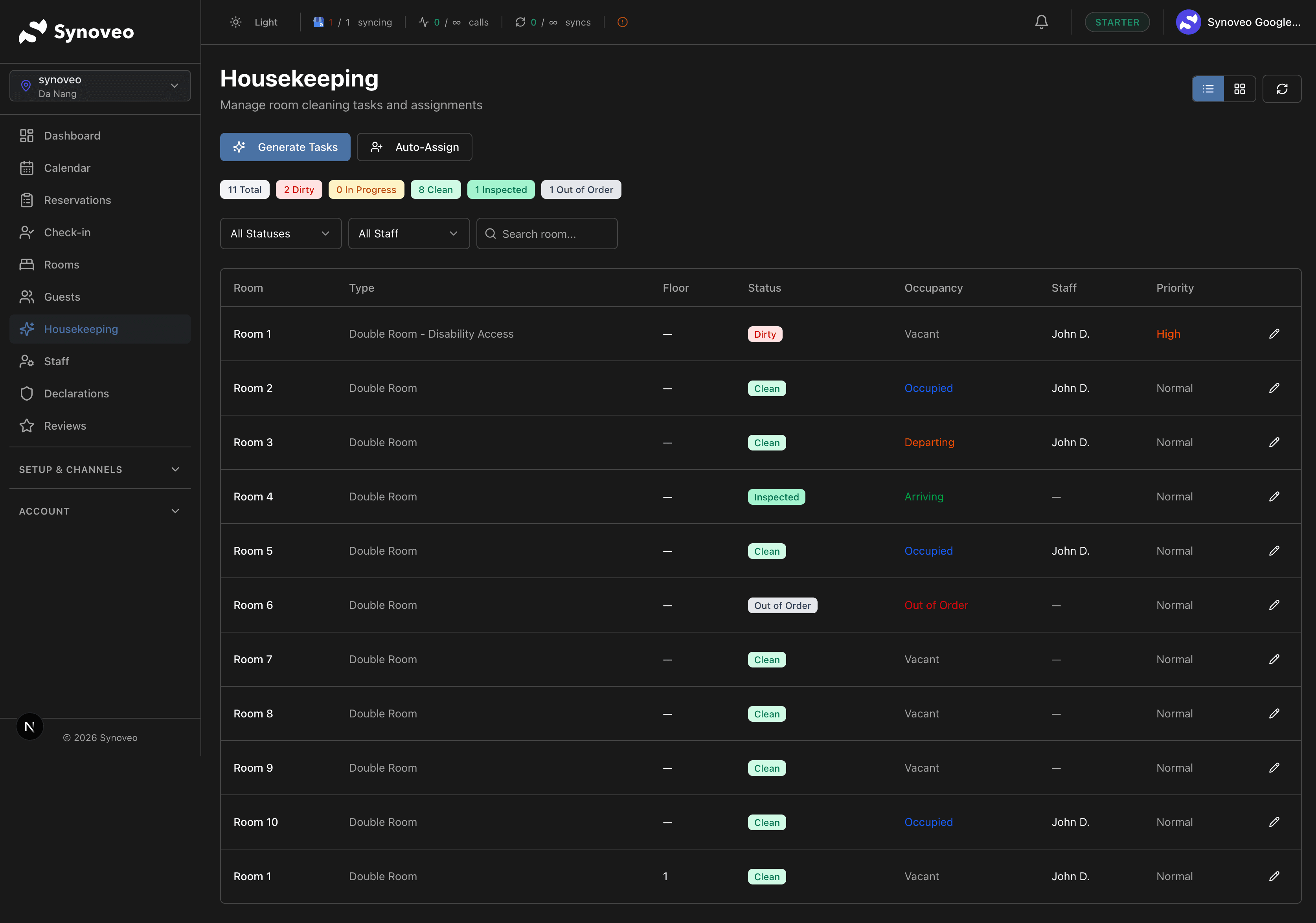
The board provides two views:
| View | Description | Best For |
|---|---|---|
| Board view | A visual grid showing all rooms with color-coded status cards | Quick overview of all rooms |
| List view | A detailed table with full information | Printing task lists, detailed management |
Room Statuses
Each room is color-coded based on its current housekeeping status:
| Status | Description | Color |
|---|---|---|
| Clean | Room is ready for the next guest | Green |
| Dirty | Room needs cleaning (after checkout or during stay) | Red |
| In Progress | Cleaning is currently underway | Yellow |
| Inspected | Room has been cleaned and verified by a supervisor | Blue |
| Out of Order | Room is unavailable due to a maintenance issue | Gray |
| Out of Service | Room temporarily taken offline | Gray |
Occupancy Indicators
Rooms also show their guest occupancy state, helping you prioritize tasks:
| Indicator | Meaning | Priority |
|---|---|---|
| Due In | Guest arriving today | Highest -- clean first |
| Due Out | Guest checking out today | High -- will need cleaning soon |
| Occupied | Guest currently staying | Medium -- daily service |
| Vacant | No guest in the room | Lower -- clean when staff available |
Rooms with guests arriving today are automatically marked as high priority. Focus on cleaning these rooms first to ensure they are ready for check-in.
Automatic Status Updates
Synoveo automatically updates room cleaning status based on reservation events:
| Event | Room Status Changes To |
|---|---|
| Guest checks out | Dirty |
| New day begins (occupied room) | Dirty (for daily service) |
| Room blocked for maintenance | Out of Order |
| Room returned to service | Dirty (needs cleaning before use) |
You can also change statuses manually at any time by clicking on a room card.
Updating Room Status
Quick Update
- Click on a room card on the housekeeping board
- Select the new status from the dropdown
- Add a note if needed (e.g., "minibar restocked", "extra towels placed")
- The status updates immediately
Bulk Update
For updating multiple rooms at once (e.g., at the end of a cleaning shift):
- Click Select Rooms on the housekeeping board
- Check the rooms you want to update
- Click Change Status
- Select the new status (e.g., Clean)
- Apply to all selected rooms
Generating Tasks
To create housekeeping tasks for the day:
- Click Generate Tasks
- The system creates tasks based on:
- Today's check-outs (rooms that need full cleaning)
- Occupied rooms (rooms that need daily service)
- Any rooms currently marked as dirty
- Tasks appear on the board, ready to be assigned
Assigning Tasks
Auto-Assign
Click Auto-Assign to distribute tasks evenly among your housekeeping staff. The system considers:
- Staff availability for the selected date
- Even workload distribution across the team
- Room proximity (when possible, grouping nearby rooms for efficiency)
Manual Assignment
You can also assign tasks individually:
Select Rooms
Click on rooms in the board that you want to assign, or use the checkboxes in list view.
Choose a Staff Member
Click Assign and select a housekeeper from the dropdown list.
Add Special Instructions (Optional)
Add notes for specific rooms:
- "VIP guest arriving -- extra amenities needed"
- "Guest requested extra towels and pillows"
- "Deep clean needed -- long-term guest checking out"
- "Check under bed -- previous guest lost an item"
Confirm
The assigned housekeeper can now see their task list with all assigned rooms.
Staff Workload
The board shows each staff member's workload -- how many rooms they have been assigned for the day. This helps you balance work across your team and avoid overloading anyone.
Daily Housekeeping Workflow
A typical day follows this pattern:
Morning
- Review the board -- check which rooms are dirty and which guests are departing
- Generate tasks -- create the day's cleaning tasks
- Assign rooms -- distribute rooms among available housekeepers (auto or manual)
- Prioritize arrivals -- ensure rooms for today's arriving guests are cleaned first
During the Day
- Clean departure rooms -- start with rooms where guests have checked out
- Service occupied rooms -- clean rooms for guests staying another night
- Update status -- mark each room as Clean or In Progress as work progresses
- Report issues -- flag any maintenance problems discovered during cleaning
Afternoon
- Inspect priority rooms -- supervisor checks rooms for incoming guests
- Mark as Inspected -- verified rooms are confirmed as ready for check-in
- Address issues -- follow up on any rooms that did not pass inspection
End of Day
- Review completeness -- ensure all assigned rooms are cleaned
- Check tomorrow -- preview what is needed for the next day's arrivals and departures
Room Inspection
For properties that require a supervisor to verify room cleanliness:
- After a housekeeper marks a room as Clean, it appears in the inspection queue
- A supervisor visits the room and checks it meets your standards
- If satisfactory, they mark it as Inspected (the highest readiness level)
- If not satisfactory, they change it back to Dirty with notes on what needs attention
Room inspection is optional. Smaller properties often skip this step and go directly from Dirty to Clean. You can configure whether inspection is required under Settings > Housekeeping.
Out of Order and Out of Service
Out of Order
When a room has a maintenance issue (broken AC, plumbing leak, damaged furniture):
- Click on the room card
- Select Out of Order
- Enter the reason (e.g., "Broken air conditioning unit")
- Set an expected return date if known
- Save
Out of Service
When a room is being taken offline for planned work (renovation, deep cleaning, seasonal closure):
- Click on the room card
- Select Out of Service
- Enter the reason and expected return date
- Save
Both statuses:
- Remove the room from available inventory on all booking channels
- Hide the room from room assignment during check-in
- Keep the room visible on the housekeeping board with its status clearly marked
Returning a Room to Service
- Click on the out-of-order or out-of-service room
- Select Return to Service
- The room status changes to Dirty (needs cleaning before use)
- Once cleaned and marked as Clean or Inspected, it becomes available for booking again
Room Notes
Add notes to any room for your housekeeping team:
- "Guest allergic to feathers -- use synthetic pillows only"
- "Minibar needs restocking"
- "Window latch needs repair -- maintenance ticket #45"
- "VIP arrival tomorrow -- prepare welcome amenities"
Notes remain visible on the room card until they are cleared or replaced.
Searching and Filtering
Use the tools at the top of the board to find specific rooms or narrow the view:
| Filter | Options |
|---|---|
| Search | Room number or name |
| Status | Clean, Dirty, In Progress, Inspected, Out of Order, Out of Service |
| Occupancy | Vacant, Occupied, Due Out, Due In |
| Assigned to | Filter by specific staff member |
| Floor | Show rooms on a specific floor |
Best Practices
- Prioritize arrivals. Always clean rooms for arriving guests first. A ready room at check-in time is the foundation of a good guest experience.
- Update status in real time. Encourage housekeepers to mark rooms as cleaned immediately after finishing, not at the end of the day. This helps front desk know which rooms are ready.
- Inspect important rooms. At minimum, inspect rooms for VIP guests, returning guests, and guests who made special requests.
- Report maintenance immediately. If a housekeeper discovers a problem (leaky faucet, broken fixture, stained carpet), report it right away so maintenance can address it before the next guest.
- Balance the workload. Use the workload indicator to distribute rooms fairly across your team.
- Plan for tomorrow. At the end of each day, review tomorrow's arrivals and departures to prepare your housekeeping schedule.