Reservations
View, search, and manage all bookings from a single dashboard with filters, sorting, and detailed booking views.
The Reservations page is your central hub for managing all bookings across your property. Whether a guest booked through your website, via Booking.com, Airbnb, or Expedia, all reservations appear here in one place.
Reservations List
Navigate to Reservations in the sidebar to see all bookings for your selected location.
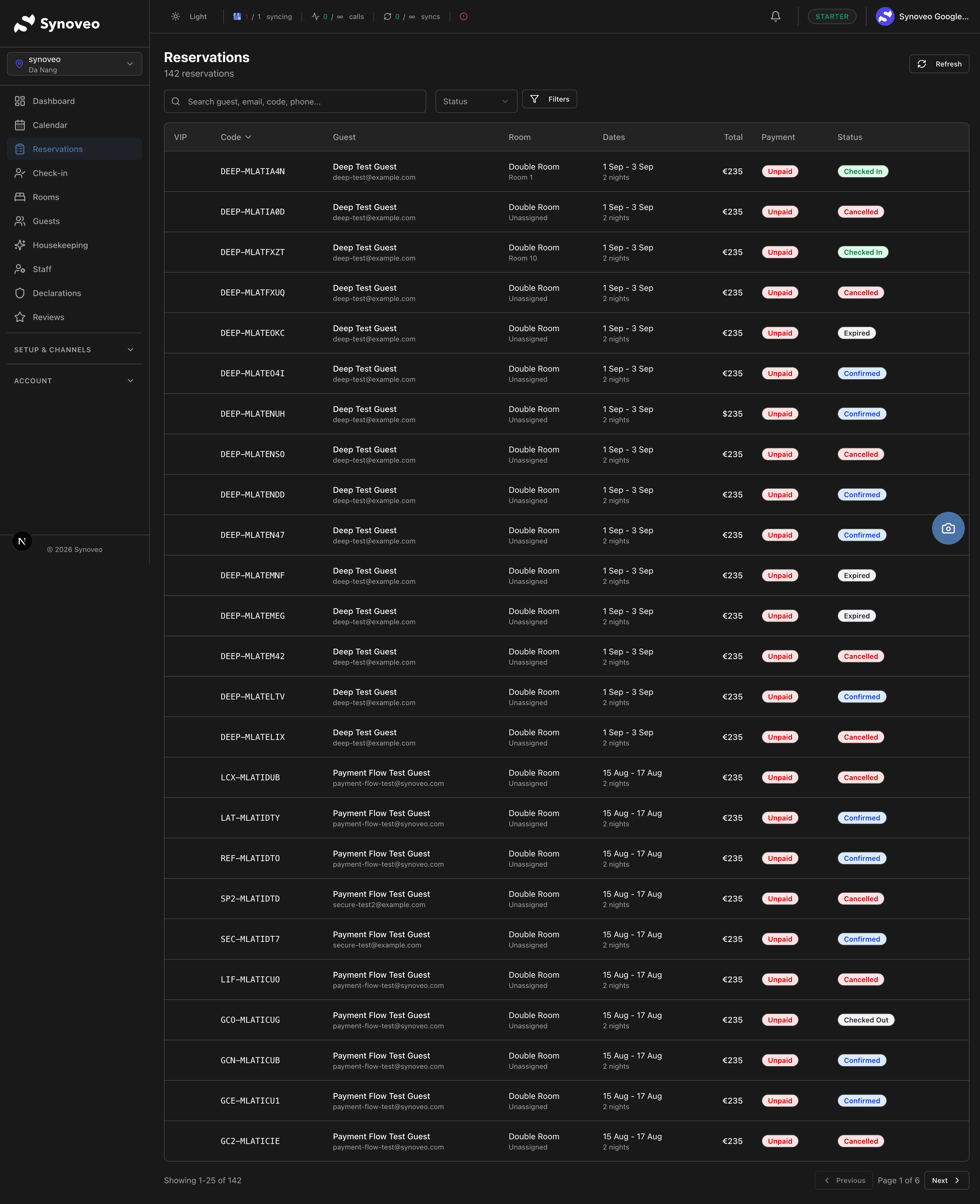
Search and Filter
The reservations list supports powerful search and filtering:
| Filter | Options |
|---|---|
| Search | Guest name, email, or confirmation code |
| Status | Confirmed, Pending, Checked In, Checked Out, Cancelled, Expired, No-Show |
| Date range | Filter by check-in or check-out dates |
| Source | Booking.com, Airbnb, Expedia, Direct, Walk-in |
| Sort | Check-in date, guest name, status, or creation date |
Use the "Today's Arrivals" quick filter to see all guests checking in today. This is especially useful at the start of each day for preparing your front desk.
Booking Statuses
Each reservation moves through a lifecycle from the moment it is created until the guest departs.
| Status | Description | Color |
|---|---|---|
| Pending | Booking created, awaiting payment | Yellow |
| Confirmed | Payment received, reservation is guaranteed | Blue |
| Checked In | Guest has arrived and been checked in | Green |
| Checked Out | Guest has departed | Gray |
| Cancelled | Booking was cancelled (by guest, property, or system) | Red |
| Expired | Payment was not completed within the time limit | Gray |
| No-Show | Guest did not arrive on the check-in date | Orange |
How Statuses Progress
Pending  -->  Confirmed  -->  Checked In  -->  Checked Out
                  |
                  +-->  Cancelled
                  |
                  +-->  No-Show
Most bookings from channels arrive as Confirmed (payment is handled by the channel). Direct bookings from your website may start as Pending until payment is completed.
Payment Statuses
Alongside the booking status, each reservation shows its payment status:
| Payment Status | Description |
|---|---|
| Pending | Awaiting payment |
| Paid | Full payment or deposit received |
| Refunded | Payment has been refunded |
| Failed | Payment attempt failed |
Reservation Details
Click on any reservation to view its full details:
Guest Information
- Full name
- Email address and phone number
- Number of guests (adults and children)
- Special requests or notes from the guest
Stay Details
- Check-in and check-out dates
- Number of nights
- Room type booked
- Assigned room number (if applicable)
Pricing Breakdown
- Nightly rate for each night of the stay
- Subtotal
- Discounts applied (length-of-stay, promotion codes)
- Taxes and fees
- Total amount
Payment Information
- Payment status
- Deposit amount
- Balance due
- Payment method
Booking Reference
- Confirmation code -- unique Synoveo reference (e.g., SYN-A1B2C3)
- Channel reference -- the booking site's own confirmation number
- Booking date -- when the reservation was made
- Source -- which channel or method created the booking
- Cancellation policy -- the policy in effect when the booking was made
Modifying a Reservation
Open the Reservation
Click on the reservation you want to modify.
Click Edit
Click the Edit button on the reservation detail page.
Make Your Changes
You can update:
- Dates -- change check-in or check-out (subject to availability)
- Room assignment -- move the guest to a different room
- Guest count -- update the number of adults or children
- Notes -- add internal notes for your team
Save
Click Save. If the booking came from a channel, the modification is sent to that channel automatically.
Some modifications to channel bookings may be restricted. For example, Booking.com may not allow date changes on non-refundable reservations. In these cases, the guest must modify through the original booking site.
Cancelling a Reservation
To cancel a booking:
- Open the reservation
- Click Cancel Reservation
- Select who initiated the cancellation (guest, property, or system)
- Provide a cancellation reason
- Confirm
What happens next depends on the booking source:
| Source | What Happens |
|---|---|
| Direct booking | Refund processed based on your cancellation policy |
| Booking.com / Airbnb | Cancellation sent to the channel; their policies apply |
| Walk-in | Reservation cancelled, room released immediately |
After cancellation, the room becomes available again on all connected channels.
Marking a No-Show
If a guest does not arrive by the expected check-in time:
- Open the reservation
- Click Mark as No-Show
- The room is released and becomes available for other bookings
- The no-show is logged for reporting
For channel bookings, the no-show is also reported to the booking channel. Each channel has its own no-show policies regarding charges.
Creating a Manual Reservation
For phone bookings, email requests, or guests you want to pre-book:
Click "New Reservation"
On the Reservations page, click New Reservation.
Enter Guest Details
Fill in the guest's name, email, and phone number.
Select Dates and Room
Choose the check-in and check-out dates, then select an available room type. You can optionally assign a specific room number.
Choose a Rate Plan
Select which rate plan to apply. The price is calculated automatically based on the nightly rates for the selected dates.
Add Notes
Add any special requests or internal notes.
Confirm
Click Confirm Reservation. The room is blocked on all channels for the selected dates.
How Bookings Arrive
Bookings can come through several channels, and all appear in the same reservations list:
| Source | How It Arrives |
|---|---|
| Direct booking | Guest books through your Synoveo website; reservation created instantly |
| Booking.com | Booking imported automatically via the channel manager |
| Airbnb | Booking imported automatically via the channel manager |
| Expedia | Booking imported automatically via the channel manager |
| Walk-in | Front desk creates a booking during check-in |
| Phone/Email | Staff creates a manual reservation |
Confirmation Codes
Every booking receives a unique confirmation code in the format SYN-XXXXXX (e.g., SYN-A1B2C3). This code is:
- Included in the guest's confirmation email
- Used for guest self-service lookup (with email verification)
- Searchable in the reservations list
- Displayed on check-in and declaration forms
Channel bookings also retain their original confirmation number from the booking site.
Best Practices
- Check arrivals daily. Review today's check-ins each morning to prepare your team.
- Assign rooms early. Pre-assign specific room numbers at least a day before arrival when possible.
- Keep notes updated. Log special requests and guest preferences for a great experience.
- Handle no-shows promptly. Mark no-shows as soon as the check-in window has passed to free up inventory.
- Use filters effectively. Do not scroll through long lists -- use status and date filters to find what you need.
- Monitor payment status. Follow up on pending payments to avoid last-minute issues.