Check-In and Check-Out
Process guest arrivals with the check-in dashboard, manage walk-ins, and handle departures.
The Check-In page gives your front desk a real-time view of all arriving guests, with tools to process check-ins efficiently and manage departures throughout the day.
Arrivals Dashboard
Navigate to Check In in the sidebar to see the arrivals board.
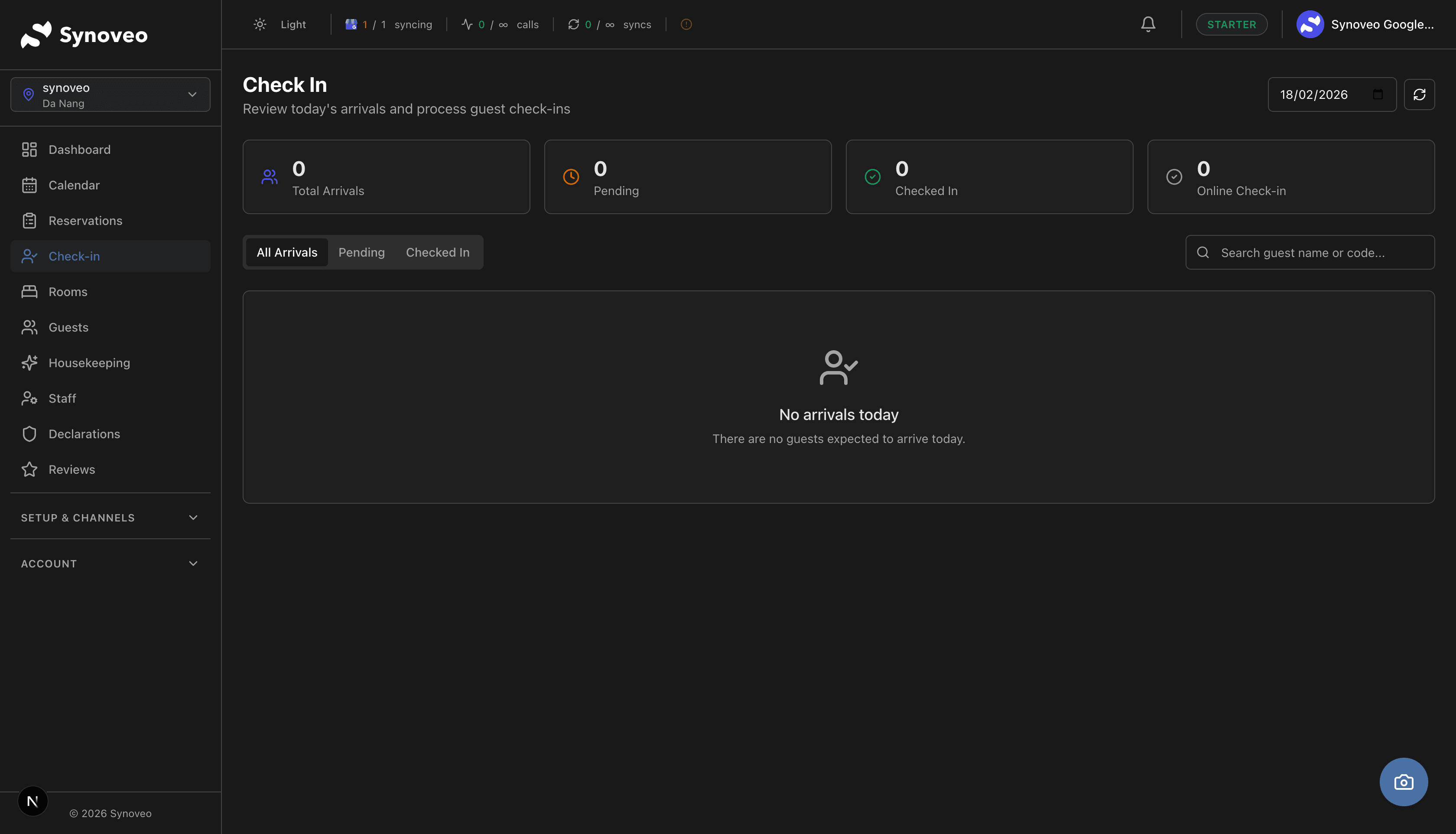
Daily Overview
The dashboard shows key stats for the selected date:
| Metric | Description |
|---|---|
| Total Arrivals | Number of bookings with check-in on this date |
| Pending | Guests who have not yet checked in |
| Checked In | Guests who have been processed |
| Online Check-in | Guests who completed check-in online before arrival |
Date Selection
By default, the page shows today's arrivals. You can:
- Select a different date using the date picker to prepare for upcoming arrivals
- Return to today with the "Today" button
- Refresh the list manually, or let it auto-refresh every 30 seconds
Filtering Arrivals
Use the tabs to filter the arrivals list:
- All Arrivals -- every booking arriving on the selected date
- Pending -- only bookings that still need to be checked in
- Checked In -- only bookings that have been processed
You can also search by guest name or confirmation code.
Review tomorrow's arrivals at the end of each day. Pre-assign rooms and note special requests so your morning team is prepared.
Arrival Cards
Each arrival in the list shows:
- Guest name -- with VIP and online check-in badges
- Confirmation code -- the SYN-XXXXXX reference
- Room type -- and assigned room number if applicable
- Stay dates -- check-in to check-out with number of nights
- Guest count -- number of adults and children
- Payment status -- whether payment has been received
- Booking status -- current status with color-coded badge
- Total amount -- the booking total in your property's currency
Processing a Check-In
Find the Guest
Search for the guest by name, confirmation code, or browse the arrivals list.
Verify Identity
Confirm the guest's identity by checking their passport or ID card. Match the name with the reservation.
Complete the Registration Form
Fill in or verify the guest registration details:
| Field | Required | Notes |
|---|---|---|
| Full name | Always | As shown on ID document |
| Date of birth | In most countries | Required for police declarations |
| Nationality | In most countries | Required for police declarations |
| ID/Passport number | In most countries | Document used for verification |
| ID expiry date | Varies | Some countries require this |
| Home address | Varies | Some countries require full address |
| Recommended | For sending confirmation and receipts | |
| Phone | Recommended | For contacting guest during stay |
For group bookings, register each guest individually, or at minimum the lead guest.
Assign a Room
If a room was not pre-assigned, assign one now. Synoveo shows which rooms are available and clean for the booked room type.
Confirm Payment
Verify that payment has been received:
- Channel bookings -- usually prepaid or billed through the channel
- Direct bookings -- collect payment per your property's policy
- Walk-ins -- collect payment or take a credit card guarantee
Complete Check-In
Click Check In to finalize. The reservation status changes to Checked In and the room is marked as occupied.
Synoveo auto-fills guest details from channel booking data when available. You only need to verify and complete any missing fields, which significantly speeds up the process.
Online Check-In
Guests who complete online check-in before arrival are highlighted with an Online badge. These guests have already:
- Confirmed their identity details
- Provided any required documents
- Acknowledged property policies
For online check-ins, the front desk process is faster -- you only need to verify the guest's identity in person and hand over the room key.
Returning Guests
When a returning guest checks in, Synoveo recognizes them from your guest database and pre-fills their registration details from their previous stay. Simply verify that the information is still current.
VIP Guests
Repeat guests and VIP-flagged bookings are highlighted so your team can provide personalized service. Look for the VIP badge on arrival cards.
Walk-In Guests
For guests who arrive without a reservation:
Start a Walk-In Booking
On the Check-In page, click Walk-In to create a new reservation on the spot.
Check Availability
Synoveo shows available room types and specific rooms for tonight (or the requested dates).
Select a Room
Choose a room type and assign a specific room number.
Enter Guest Details
Complete the full registration form since there is no pre-existing booking data.
Set the Rate
Select a rate plan. The applicable rate for the selected dates is shown automatically.
Collect Payment
Take payment or a credit card guarantee.
Complete Check-In
Click Check In to finalize. The room is booked and marked as occupied, and availability is updated on all channels.
Walk-in reservations immediately block the room on all connected booking channels. Complete the check-in promptly so availability stays accurate.
Today's Departures
Switch to the Departures tab to see all guests scheduled to check out today.
The departures view shows:
- Guest name and room number
- Scheduled check-out time
- Outstanding balance (if any)
- Status -- whether the guest has already departed
The Check-Out Process
Review the Bill
Open the reservation and review all charges, including room charges, extras, and any adjustments.
Settle Outstanding Balance
If there is an outstanding balance, collect payment before the guest departs.
Complete Check-Out
Click Check Out to finalize. The reservation status changes to Checked Out.
After check-out:
- The room appears as Dirty in the housekeeping board
- Once cleaned and inspected, the room becomes available for the next guest
- Availability is updated on all connected channels
Late Check-Out and Early Check-In
Late Check-Out
If a guest requests a late check-out:
- Open their reservation
- Adjust the check-out date or note the extended time
- Add any additional charges if applicable
- Save the changes
Early Check-In
If a guest arrives before the standard check-in time:
- Check if their assigned room is already clean (check the housekeeping board)
- If the room is ready, proceed with a normal check-in
- If not, offer the guest to wait or assign an alternative clean room of the same type
Group Check-In
For groups arriving together:
- Open the group's lead reservation
- Register each guest in the group
- Assign rooms to each guest or sub-group
- Complete the check-in for all guests
This saves time compared to processing each reservation individually.
Best Practices
- Pre-assign rooms the day before. This speeds up check-in and lets housekeeping prioritize those rooms for cleaning.
- Use the online check-in feature. Guests who complete registration online spend less time at the front desk.
- Train all staff on walk-ins. Last-minute guests should have the same smooth experience as those who booked in advance.
- Process check-outs promptly. The sooner a room is flagged for cleaning, the sooner it is available for the next guest.
- Keep the timeline in mind. If a guest disputes charges, the reservation timeline has a complete record of every action.
- Collect complete registration data. Missing fields cause incomplete police declarations, which creates compliance issues.