Declarations
Manage police and authority guest declarations -- track submission status, generate PDFs, and maintain compliance records.
Many countries require lodging properties to report guest information to local authorities. Synoveo automates this process by generating police declarations from the data collected during check-in.
What Are Police Declarations?
Police declarations (also called guest registration cards, traveler reports, or foreigner registration) are mandatory reports that lodging properties must submit to local police or immigration authorities.
These reports typically include:
- Guest's full name and date of birth
- Nationality and document number
- Check-in and check-out dates
- Property name and address
Requirements vary by country and region. In some places, only foreign guests need to be declared. In others, all guests must be reported. Always check your local regulations.
How It Works
Synoveo simplifies declarations by automatically gathering the required information from your check-in process:
Guest checks in --> Registration data collected --> Declaration auto-generated --> Review & submitNo need to re-enter information or maintain a separate system -- declarations are created from the data already in your reservations.
Declarations Dashboard
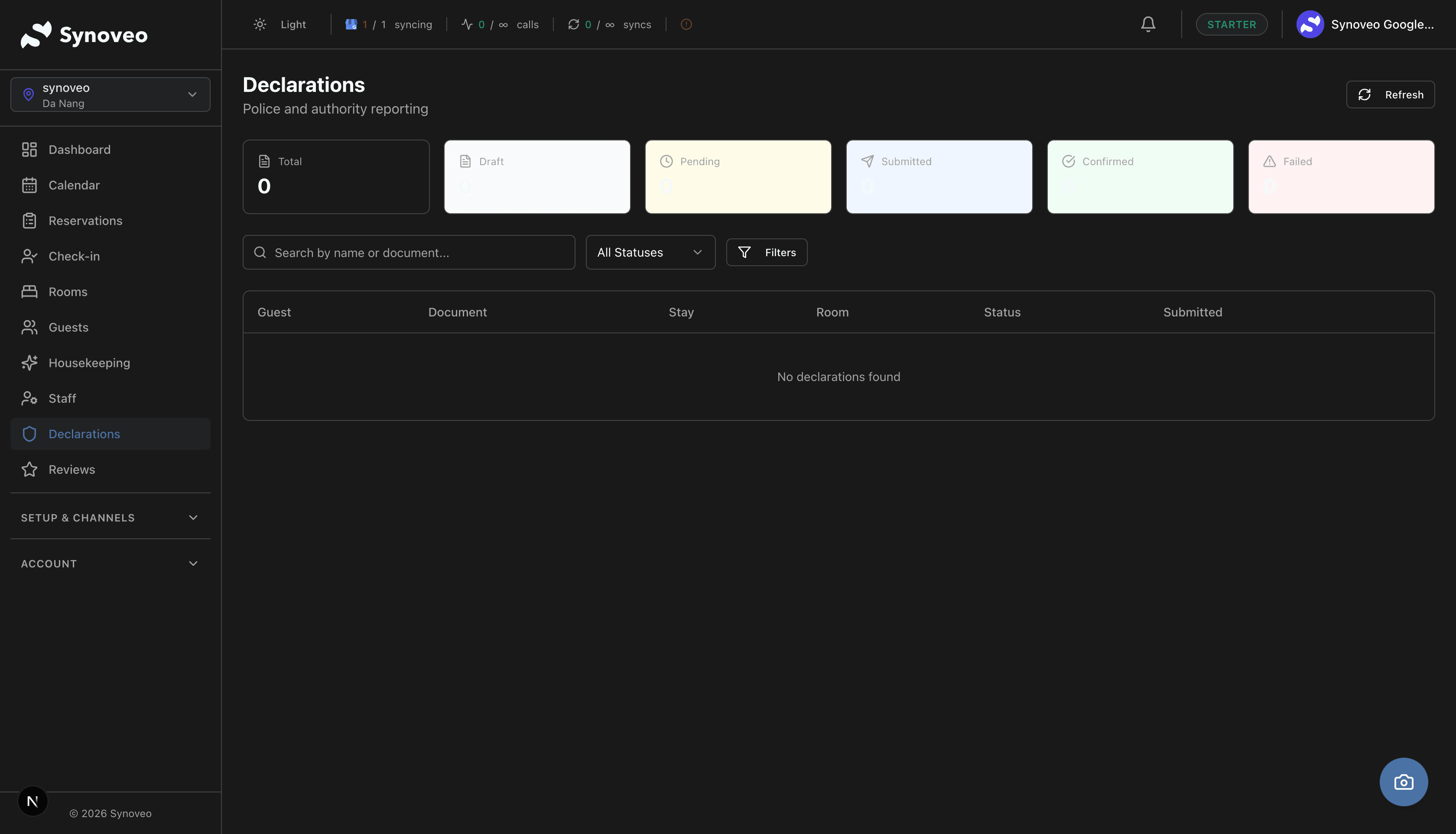
Navigate to Declarations in the sidebar to view and manage all guest declarations.
Status Overview
The dashboard shows summary statistics at the top:
| Status | Description | Color |
|---|---|---|
| Draft | Declaration created but not yet ready for submission | Gray |
| Pending | All required fields filled, ready to submit | Yellow |
| Submitted | Declaration has been sent to the authority | Blue |
| Confirmed | Authority has acknowledged receipt | Green |
| Failed | Submission failed and needs to be retried | Red |
Search and Filter
Find specific declarations using:
| Filter | Options |
|---|---|
| Search | Guest name or document number |
| Status | Draft, Pending, Submitted, Confirmed, Failed |
| Date range | Check-in dates within a period |
| Nationality | Filter by guest nationality |
| Sort | Check-in date, guest name, status, or creation date |
Declaration Details
Click on any declaration to view its full contents:
Guest Information
- Full name
- Date of birth and place of birth
- Nationality
- Document type (passport, national ID, driver's license, residence permit)
- Document number and expiry date
Stay Information
- Property name and address
- Check-in date and time
- Expected check-out date
- Room number
- Linked reservation (click to view the booking)
Submission History
- When the declaration was created
- When it was marked ready
- When it was submitted
- Confirmation number from the authority (if applicable)
Completing a Declaration
When a declaration is in Draft status, it may be missing required information. Synoveo highlights exactly which fields need to be filled in.
Open the Declaration
Click on the draft declaration to see its details.
Check for Missing Fields
Fields highlighted in yellow are required but missing. Common missing fields include:
- Place of birth
- Document expiry date
- Home address
Enter Missing Information
Fill in the missing fields. You can also update any information that was entered incorrectly during check-in.
Mark Ready to Submit
Once all required fields are complete, click Mark Ready to Submit. The status changes to Pending.
The most commonly missing fields are place of birth and document expiry date. Train your front desk team to collect these during check-in to avoid incomplete declarations.
Submitting Declarations
To the Authority
To submit a completed declaration:
- Click the actions menu and select Submit Declaration
- Choose the submission method:
- Paper Form -- you will submit a physical form to the authority
- Online Portal -- you submitted through the authority's website
- Direct System Connection -- automatic submission through an integrated system
- Optionally enter the confirmation number or receipt reference
- Click Submit
The status updates to Submitted with a timestamp.
PDF Export
For properties that submit declarations on paper or via email:
- Select one or more declarations using the checkboxes
- Click Export PDF
- The PDF is formatted according to the standard declaration format
- Download, print, or email to the relevant authority
Bulk Export
Export multiple declarations at once for a time period:
- Filter declarations by date range and status
- Click Export All (or select specific declarations)
- Download a single PDF containing all selected declarations
- Submit the batch to your local authority
Marking as Submitted
After submitting (whether digitally or on paper), mark the declarations as submitted:
- Select the submitted declarations
- Click Mark as Submitted
- Optionally enter the confirmation number received from the authority
- They move to Submitted status
Automatic Declaration Creation
Declarations are created automatically during the check-in process when guest identity documents are captured. The system populates the declaration with:
- Guest personal information from the booking
- Identity document details from the check-in registration
- Stay information from the reservation
If all required fields are present at check-in, the declaration is created directly in Pending status (ready to submit). If some fields are missing, it is created in Draft status for you to complete later.
Country-Specific Requirements
Declaration requirements differ significantly by country. Here are some common patterns:
| Country | Who Must Be Declared | Typical Deadline |
|---|---|---|
| Spain | All guests | Within 24 hours |
| Italy | All guests | Within 24 hours |
| Portugal | Foreign guests | Within 3 business days |
| France | Foreign guests | Day of arrival |
| Greece | All guests | Within 24 hours |
| Germany | All guests | Day of arrival |
This table is for reference only. Regulations change frequently. Always verify current requirements with your local authorities or legal advisor.
Overdue Declarations
Synoveo tracks submission deadlines based on your property's settings. If a declaration has not been submitted within the configured timeframe, it is flagged as overdue.
To check for overdue declarations:
- Filter the declarations list by status Draft or Pending
- Look for declarations with a red overdue indicator
- Complete and submit these as soon as possible
Settings
Configure declarations for your property under Settings > Declarations:
- Required fields -- choose which fields are mandatory based on your local regulations
- Submission deadline -- set how many hours after check-in a declaration should be submitted
- Default values -- pre-fill fields that are the same for every declaration (property name, address, registration number)
Troubleshooting
Declaration is incomplete but I collected all the data
Check if the guest's information was saved correctly during check-in. Sometimes a network interruption can cause data to not be saved. Open the reservation, verify the registration data, and save again. The declaration should update automatically.
Missing fields that I cannot collect
Some countries require fields like place of birth that guests may not know offhand. If you cannot collect a required field, enter the information you have and add a note. Consult your local authority about how to handle missing fields.
Overdue declarations
Submit overdue declarations as soon as possible. Most authorities understand occasional delays, but consistent late submissions can result in fines. Consider adjusting your check-in workflow to prioritize collecting all required declaration fields.
Best Practices
- Collect all data at check-in. Do not plan to fill in details later -- it often gets forgotten or delayed.
- Review declarations daily. Check for incomplete or overdue declarations each morning.
- Train your team. Every front desk staff member should know which fields are legally required in your jurisdiction.
- Submit on time. Do not let declarations pile up. Submit them according to your local deadline.
- Keep records. Maintain submitted declarations for the period required by local regulations (typically 1-5 years).
- Use bulk export. For properties with many guests, batch export saves significant time compared to processing declarations one by one.