Availability Management
Control your room inventory, manage overbooking protection, and keep availability in sync across all booking channels.
Availability management ensures you never oversell your rooms. Synoveo tracks inventory automatically as bookings come in from your direct booking website and connected channels like Booking.com, Airbnb, and Expedia.
How Availability Works
For each room type, Synoveo tracks daily availability using three values:
| Field | Description |
|---|---|
| Total rooms | The number of physical rooms or units you have of this type |
| Booked rooms | Rooms reserved by confirmed or pending bookings |
| Blocked rooms | Rooms you have manually blocked (maintenance, owner use, etc.) |
Available rooms = Total rooms - Booked rooms - Blocked rooms
Example: 5 Double Rooms on a given date
| Metric | Count |
|---|---|
| Total rooms | 5 |
| Booked | 2 |
| Blocked (maintenance) | 1 |
| Available | 2 |
When a guest makes a booking, availability decreases automatically. When a booking is cancelled or expires, availability is restored.
Availability Calendar
The availability calendar (accessible from Rates & Availability in the sidebar) shows a timeline view of all rooms:
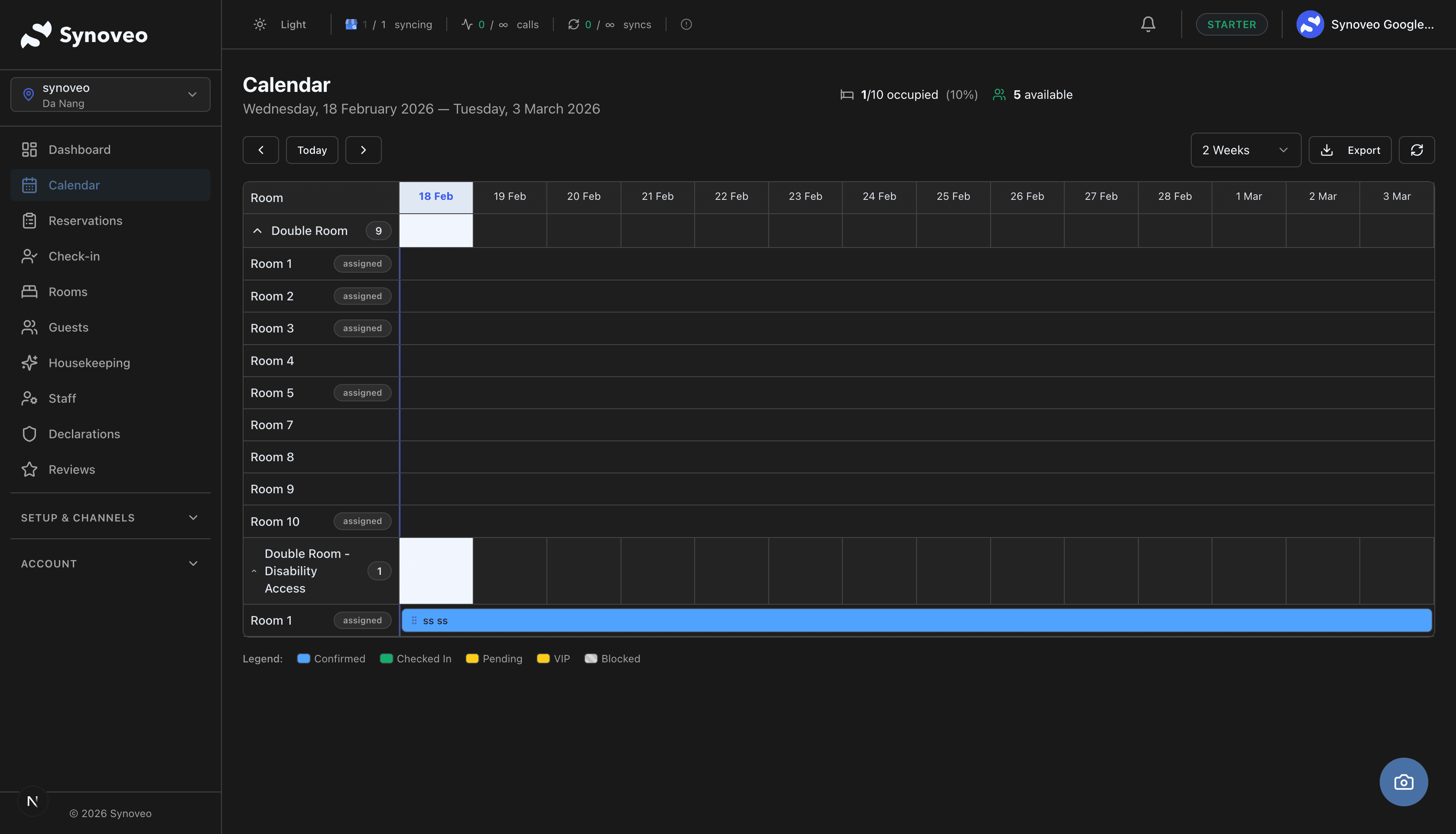
- Room rows -- each room type appears as a row
- Booking blocks -- colored blocks show existing reservations
- Available gaps -- open spaces indicate availability
- Blocked dates -- marked with a distinct pattern or color
Use this view to get a quick overview of your occupancy for the coming days and weeks.
Navigating the Calendar
- Week view -- see a detailed look at the next 7-14 days
- Month view -- overview of the entire month at a glance
- Jump to date -- click the date picker to navigate to any future date
- Room filter -- show only specific room types
Check the availability calendar first thing each morning. It gives you an instant picture of today's check-ins, check-outs, and gaps you could fill.
Automatic Inventory Updates
Synoveo updates availability automatically in these situations:
| Event | What Happens |
|---|---|
| New booking created | Booked count increases |
| Booking confirmed | No change (already counted at creation) |
| Booking cancelled | Booked count decreases, room becomes available |
| Booking expired | Pending bookings not paid in time are expired, restoring availability |
| Guest checks out | Booked count decreases |
| Room blocked | Available count decreases |
| Room unblocked | Available count increases |
Pending bookings hold inventory. When a guest starts the booking process, the room is reserved for a limited time. If payment is not completed, the booking expires automatically and the room becomes available again.
Blocking Rooms
You can manually block rooms to prevent them from being sold. This is useful when rooms are unavailable for reasons other than bookings.
Common Reasons to Block
- Maintenance -- room is being repaired (plumbing, electrical, etc.)
- Renovation -- room is being remodeled or updated
- Owner use -- room reserved for the property owner or family
- Out of service -- room temporarily unavailable for any reason
- Event setup -- room being used for a private function
How to Block Rooms
Select Dates on the Calendar
Click on a date or drag across a range of dates for the room type you want to block.
Choose Block
In the edit panel, select the block option and enter the number of rooms to close.
Add a Reason (Optional)
Add a note explaining the block (e.g., "AC repair -- expected completion March 20"). This helps your team understand why the room is unavailable.
Save
The blocked dates appear on the calendar. Availability on all connected channels is updated automatically.
Unblocking Rooms
To reopen blocked rooms:
- Click on the blocked dates on the calendar
- Remove the block
- Save -- rooms become available again on all channels
Blocking a room in Synoveo automatically closes it on Booking.com, Airbnb, Expedia, and your direct booking website. You do not need to update each channel separately.
Channel Synchronization
When you connect channels through the Channel Manager, availability is synchronized automatically across all platforms.
How It Works
- A booking comes in from Booking.com
- Synoveo updates the local inventory (available count decreases)
- Updated availability is pushed to Airbnb, Expedia, and your direct booking website
- All channels now show the correct number of rooms
This prevents double bookings -- when a room is booked on one platform, it is immediately closed on all others.
Sync Speed
Availability updates are sent to channels within minutes of a booking. During this brief window, it is theoretically possible for two guests to book the last room on different channels simultaneously. This is extremely rare, and Synoveo handles it if it occurs (see Overbooking Protection below).
Overbooking Protection
Synoveo includes several safeguards to prevent overbookings:
- Real-time sync -- Availability updates are sent to channels as soon as a booking is received
- Inventory lock -- When a room type reaches zero availability, all channels are closed automatically
- Pending hold -- Rooms are held during the booking process so two guests cannot reserve the same room simultaneously
- Conflict detection -- If an overbooking does occur, Synoveo flags it immediately on your reservations page
If an Overbooking Happens
In the rare event of a double booking:
- You receive a notification highlighting the conflict
- The conflicting reservations are flagged in your reservations list
- You decide how to resolve it -- relocate a guest to another room type, contact the guest to offer alternative dates, or arrange accommodation at a partner property
Overbookings from channel sync are extremely rare (less than 0.1% of bookings). The most common cause is manual errors, such as forgetting to block a room that was sold over the phone.
Availability Restrictions
In addition to blocking rooms, you can apply restrictions that control how rooms are booked without removing them from inventory. These are configured on the rate calendar:
| Restriction | Effect |
|---|---|
| Stop Sell | Closes the room type to new bookings (but does not change inventory count) |
| Close to Arrival | Guests cannot check in on this date |
| Close to Departure | Guests cannot check out on this date |
| Minimum Stay | Guests must book at least N nights when arriving on this date |
The key difference between blocking and stop sell:
- Blocking reduces your available room count
- Stop sell keeps the room count unchanged but prevents new bookings
Use stop sell when you want to temporarily pause sales (e.g., during a pricing review) without affecting your reported inventory numbers.
Monitoring Availability
Low Availability Alerts
As rooms fill up, you may want to:
- Increase rates for high-demand dates (revenue management)
- Block rooms on less profitable channels
- Prepare for fully booked dates (arrange extra staffing, supplies)
Check the calendar regularly to spot dates where availability is running low.
Occupancy Overview
The availability calendar gives you an at-a-glance view of your occupancy:
- High occupancy (80%+) -- consider raising rates
- Medium occupancy (50-80%) -- maintain current pricing
- Low occupancy (below 50%) -- consider promotions or rate reductions
Best Practices
- Review your calendar weekly. Look ahead 2-3 months to spot gaps and opportunities.
- Keep blocks up to date. Unblock rooms as soon as maintenance is complete so they can start generating revenue.
- Trust the sync. Do not manually adjust channel availability -- let Synoveo handle it. Manual changes on channels can cause conflicts.
- Use restrictions wisely. Minimum stay requirements during peak periods can increase average booking length and reduce turnover costs.
- Monitor for conflicts. Check the reservations page daily for any flagged overbookings and resolve them promptly.
- Plan for events. When you know about upcoming local events, adjust rates and restrictions in advance.