Customizing Your Website
Brand your minisite with your colors, logo, and content
Your Synoveo minisite is designed to look great out of the box, but you can customize it to match your property's brand and personality.
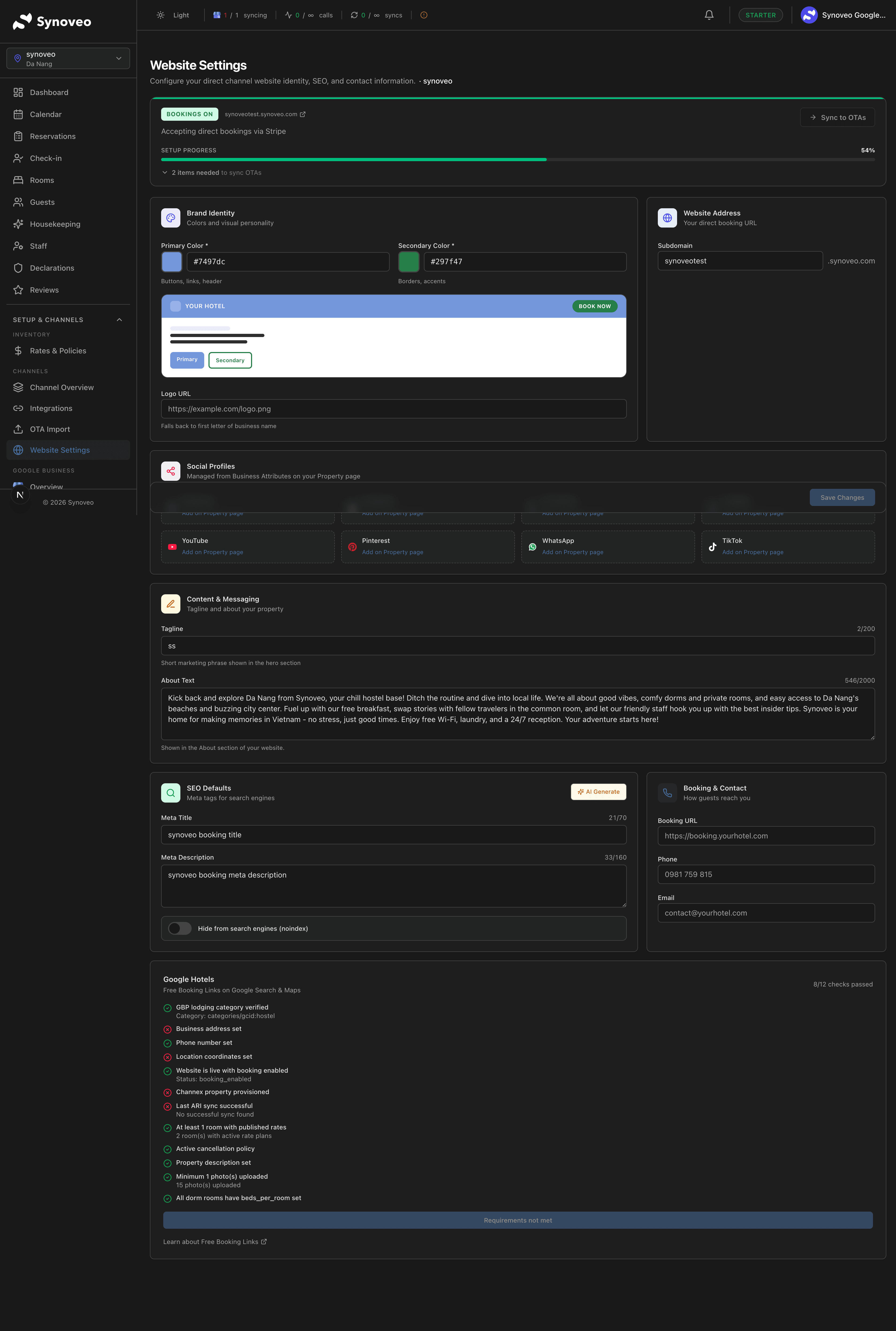
Branding
Make your minisite feel like your own with custom branding options.
Logo
Upload your property logo to display in the website header and booking confirmations.
Logo requirements:
- Format: PNG, JPG, or SVG
- Recommended size: At least 400px wide
- Transparent background works best (PNG or SVG)
- Horizontal layout displays better in the header
Colors
Set your brand colors to customize the look of your minisite:
| Setting | Where It Appears |
|---|---|
| Primary color | Buttons, links, accents |
| Secondary color | Headers, highlights |
| Background | Page background |
| Text color | Body text |
Use your existing brand colors. If you're not sure, pick a primary color that matches your logo and keep the background light for readability.
Fonts
Choose from a selection of font families for your minisite:
- Headings font -- Used for page titles and section headers
- Body font -- Used for paragraphs and descriptions
The default fonts are clean and professional. Only change them if you have a specific brand style.
Content Sections
Your minisite is organized into sections that you can customize.
About / Welcome
The main description of your property that appears at the top of your minisite. This is your chance to tell guests what makes your property special.
Tips for a great description:
- Lead with what makes you unique (location, history, atmosphere)
- Mention nearby attractions and activities
- Keep it warm and inviting, not formal
- Aim for 2-3 paragraphs
Rooms
Each room type from your Synoveo account gets its own section with:
- Room name and description
- Photo gallery
- Bed configuration
- Amenities list
- Pricing (from your active rate plan)
- Book now button
Room content comes from your property setup. To update room descriptions or amenities, edit them in Property > Rooms.
Photo Gallery
Your minisite includes a photo gallery that showcases your property. Photos are pulled from your Synoveo account.
Photo gallery best practices:
- Upload at least 10-15 photos
- Include exterior shots, common areas, and each room type
- Use high-quality images (at least 1200px wide)
- Add descriptive captions
- Put your best photos first -- they appear in the preview
Location
An interactive map shows your property location based on the address in your profile. Guests can:
- See nearby landmarks and attractions
- Get driving directions
- View the neighborhood
Contact Information
Your contact details displayed on the minisite:
- Phone number
- Email address
- Physical address
- Check-in and check-out times
Make sure your contact information is accurate. Guests use this to reach you before and during their stay.
Social Media Links
Add links to your social media profiles so guests can follow you:
| Platform | Where It Shows |
|---|---|
| Footer social icons | |
| Footer social icons | |
| Twitter / X | Footer social icons |
| TripAdvisor | Footer social icons |
Social icons appear in the footer of your minisite. Only platforms you add links for will be shown.
SEO Settings
Help guests find your minisite through search engines with these settings:
Page Title
The title that appears in search engine results and browser tabs. Defaults to your property name but can be customized.
Good example: "Riverside Inn - Boutique B&B in Downtown Portland"
Meta Description
A short summary (150-160 characters) that appears below your title in search results. Describe what makes your property special.
Good example: "Charming 6-room bed and breakfast in the heart of Portland. Walk to restaurants, shops, and the waterfront. Book direct for the best rate."
Canonical URL
If you're using a custom domain, this ensures search engines index the right URL for your site.
Search engines favor websites with complete, accurate information. Fill out all your property details, add quality photos, and write descriptive room listings to improve your search ranking.
Advanced Settings
Booking Widget Configuration
Customize how the booking widget appears on your minisite:
| Setting | Description |
|---|---|
| Widget position | Where the booking search appears (header, sidebar, or inline) |
| Default dates | Pre-fill check-in/out dates (today + 1 night, or blank) |
| Guest selector | Show or hide the guest count selector |
| Currency display | How prices are formatted |
Analytics
Track how your minisite performs:
- Visitor count -- How many people view your site
- Booking conversions -- What percentage of visitors make a booking
- Popular pages -- Which rooms and content get the most attention
- Traffic sources -- Where your visitors come from (Google, social media, direct)
Preview and Publish
After making changes:
Preview your changes
Click Preview to see how your minisite looks with the new settings. Check both desktop and mobile views.
Review carefully
Check that colors look right, text is readable, photos display well, and the booking widget functions correctly.
Publish
Click Save to publish your changes. Updates appear on your live minisite immediately.
Customization Checklist
- Logo uploaded and displaying correctly
- Brand colors set (primary, secondary)
- Property description written
- At least 10 quality photos in the gallery
- Room descriptions are complete
- Contact information is accurate
- Social media links added
- SEO title and description set
- Booking widget tested and working
- Site reviewed on mobile device