Room Management
Create and manage rooms, understand unit counting, and work within your plan's capacity
Your rooms are the foundation of your property on Synoveo. This guide covers everything you need to know about adding rooms, understanding how capacity is calculated, and managing your inventory.
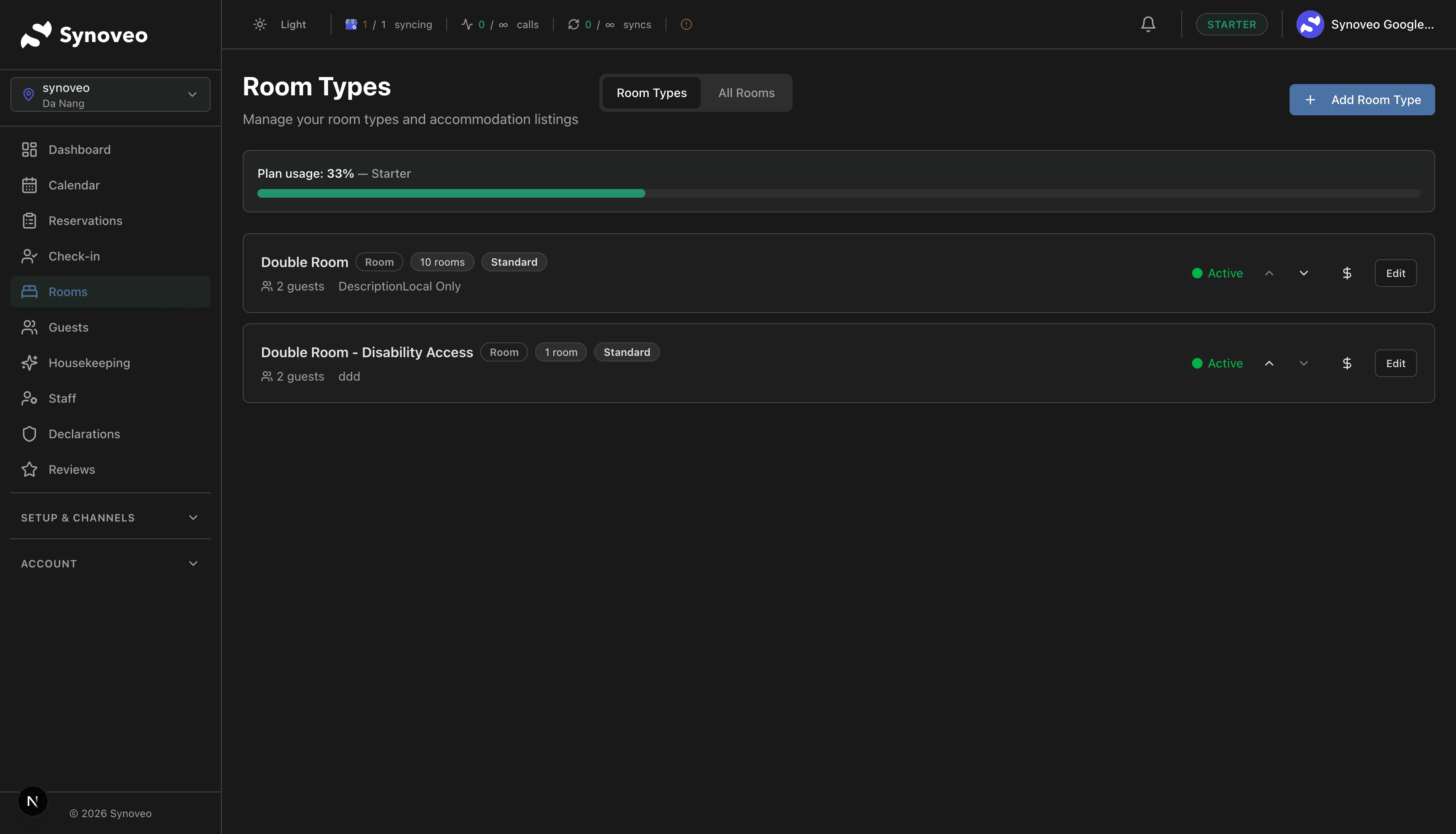
Room Types
Synoveo supports three types of accommodation units, each suited to different property styles:
| Type | Description | Example |
|---|---|---|
| Private Room | A self-contained room booked as one unit | Hotel room, B&B suite, guesthouse room |
| Dorm Bed | An individual bed in a shared room | Hostel bunk, shared dormitory bed |
| Vacation Rental | An entire property rented as one listing | Apartment, cabin, holiday home |
Your property type determines which room types are available. Hotels, B&Bs, and hostels can add private rooms and dorm beds. Vacation rental properties add entire listings instead.
Understanding Unit Counting
Every plan has a maximum number of units you can use. Units are weighted based on the type of accommodation, reflecting the revenue potential of each:
| Accommodation Type | Weight | Example |
|---|---|---|
| Private room | 5 units per room | 6-room B&B = 30 units |
| Dorm bed | 1 unit per bed | 30-bed hostel = 30 units |
| Vacation rental | 10 units per listing | 3 vacation rentals = 30 units |
Plan Capacity Limits
| Plan | Maximum Units | Typical Property Size |
|---|---|---|
| Starter | 30 units | Small B&B (6 rooms) or 30-bed hostel |
| Growth | 75 units | Medium B&B (15 rooms) or small hotel |
| Professional | 175 units | Boutique hotel (35 rooms) |
| Business | 300 units | Large hotel (60 rooms) |
| Enterprise | Unlimited | Chain hotels, large portfolios |
You can see your current unit usage on the Rooms page. A progress bar shows how much of your plan's capacity you have used.
Counting Examples
Boutique Hotel with 20 private rooms:
- 20 rooms x 5 units = 100 units (Professional plan or higher)
Hostel with 8 private rooms and 40 dorm beds:
- 8 rooms x 5 units = 40 units
- 40 beds x 1 unit = 40 units
- Total: 80 units (Growth plan or higher)
Vacation Rental Manager with 5 properties:
- 5 listings x 10 units = 50 units (Growth plan or higher)
Creating a Room
Open the Rooms page
Navigate to Property Setup in the sidebar, then click Rooms.
Click "Add Room"
Click the Add Room button in the top-right corner of the page.
Enter room details
Fill in the room information:
- Room name - A descriptive name guests will see (e.g., "Deluxe King Suite", "Ocean View Double")
- Room type - Private room or dorm (vacation rentals add listings instead)
- Max occupancy - The maximum number of guests the room can accommodate
- Bed configuration - The type and number of beds (e.g., 1 King, 2 Queens)
- Base rate - The standard nightly price for this room
Save the room
Click Save to create the room. It will appear in your room list with an Active status by default.
Adding Dorm Beds
For hostel-style properties, dorm beds work slightly differently:
Create the shared room
Add a room and set the type to Dorm.
Set the number of beds
Enter the total number of beds available in the shared room. Each bed counts as 1 unit toward your plan limit.
Configure bed details
Set the bed type (bunk, single, etc.) and any per-bed amenities like a reading light or locker.
Dorm beds are sold individually to guests. A 10-bed dorm room means you can accept up to 10 separate bookings for that room on any given night.
Room Status
Each room has a status that controls its availability:
| Status | Meaning | Visible to Guests? |
|---|---|---|
| Active | Available for booking | Yes |
| Inactive | Temporarily unavailable | No |
| Maintenance | Under repair or renovation | No |
Changing Room Status
- Go to the Rooms page
- Find the room you want to update
- Click the status badge next to the room name
- Select the new status from the dropdown
Setting a room to Inactive or Maintenance will not cancel existing bookings for that room. You will need to handle any affected reservations separately.
Editing a Room
To update an existing room:
- Click on the room name in your room list
- Edit any of the room details (name, occupancy, beds, rate)
- Click Save Changes
Changes to room details take effect immediately on your booking page and website. If your property is connected to booking sites like Booking.com or Airbnb, updates will be sent to those channels as well.
Room Amenities
Each room can have its own set of amenities. Common room-level amenities include:
- Air conditioning / Heating
- Television
- WiFi
- Mini fridge / Minibar
- Safe / Lockbox
- Private bathroom
- Balcony / Terrace
- Coffee maker / Kettle
To manage amenities for a room, click on the room name, then scroll to the Amenities section. Check the amenities that apply and save your changes.
Listing accurate amenities helps guests find your property when searching on booking sites and improves your listing quality score.
Room Photos
Each room can have its own photo gallery. Adding photos for each room type helps guests understand what they are booking.
- Open a room from the room list
- Scroll to the Photos section
- Click Upload Photos and select your images
- Drag photos to reorder them -- the first photo becomes the cover image
For detailed guidance on photo requirements and best practices, see the Photos guide.
Bulk Operations
When managing many rooms at once, use bulk actions to save time:
- Select multiple rooms using the checkboxes in the room list
- Choose an action from the Bulk Actions menu:
- Set status - Change all selected rooms to Active, Inactive, or Maintenance
- Update rate - Apply a new base rate to all selected rooms
- Delete - Remove all selected rooms
Deleting rooms is permanent and cannot be undone. Make sure there are no upcoming bookings for rooms you plan to delete.
Reaching Your Plan Limit
When you try to add a room that would exceed your plan's unit capacity, you will see a message explaining the limit. You have two options:
- Upgrade your plan - Move to a higher tier for more capacity
- Remove existing rooms - Deactivate or delete rooms you no longer need to free up units
The upgrade option will show you exactly which plan you need based on your desired room count.
Frequently Asked Questions
Can I have different room types in one property?
Yes. A property can mix private rooms and dorm beds. For example, a hostel might have 4 private rooms and a 20-bed dormitory.
Do inactive rooms count toward my unit limit?
Yes. All rooms count toward your limit regardless of status. If you need to free up units, you must delete the room entirely.
Can I change a room's type after creating it?
No. If you need to change a private room to a dorm (or vice versa), delete the existing room and create a new one with the correct type.
How do I know which plan I need?
Count your total units: multiply private rooms by 5, dorm beds by 1, and vacation rental listings by 10. Then choose the plan that fits your total.