Property & Room Photos
Upload, organize, and manage photos for your property, rooms, and listings
Great photos are one of the most important factors in getting bookings. This guide explains how to upload and manage photos across your property, and how they appear on your website, Google listing, and booking sites.
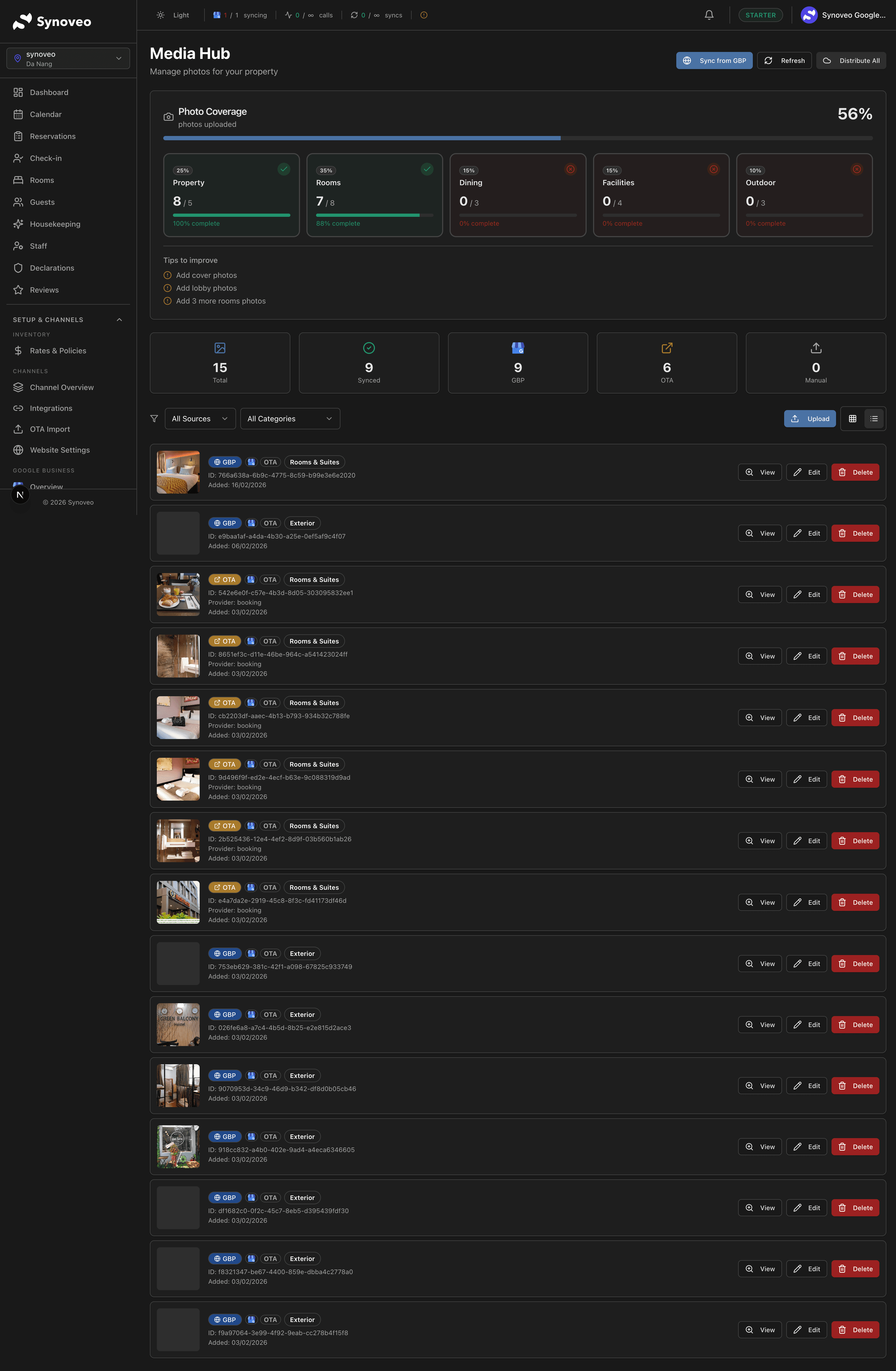
Photo Categories
Synoveo organizes your photos into categories so guests can easily browse your property:
| Category | What to Include | Where It Appears |
|---|---|---|
| Property | Building exterior, entrance, lobby, reception | Main listing, Google profile |
| Rooms | Individual room photos tied to each room type | Room listings, booking page |
| Amenities | Pool, gym, spa, parking, common areas | Facilities section, Google profile |
| Surroundings | Nearby attractions, views, neighborhood | Property page, Google profile |
| Food & Drink | Restaurant, breakfast spread, bar, dining area | Property page, Google profile |
Each room type has its own photo gallery separate from the property-level photos. Make sure to upload photos to both levels for the most complete listing.
Uploading Property Photos
Open the Photos page
Navigate to Property Setup in the sidebar, then click Photos.
Select a category
Choose the photo category you want to add to (Property, Amenities, Surroundings, or Food & Drink).
Upload your images
Click Upload Photos and select one or more images from your device. You can also drag and drop files directly onto the upload area.
Add descriptions
For each photo, add a brief description. This helps with accessibility and can improve your search visibility.
Save
Click Save to add the photos to your listing.
Uploading Room Photos
Room photos are managed separately for each room type:
Open the room
Go to Property Setup > Rooms and click on the room you want to add photos to.
Scroll to Photos
Find the Photos section on the room detail page.
Upload room images
Click Upload Photos and select images that show this specific room type.
Set the cover photo
The first photo in the list becomes the cover photo shown on your booking page. Drag photos to reorder them.
Upload at least 5 photos per room type. Listings with more photos consistently get more bookings across all booking platforms.
Photo Requirements
Technical Specifications
| Requirement | Details |
|---|---|
| Format | JPG or PNG |
| Minimum size | 1024 x 768 pixels |
| Maximum file size | 10 MB per image |
| Aspect ratio | Landscape (4:3 or 16:9) preferred |
| Color space | sRGB recommended |
Content Guidelines
Do:
- Use high-quality, well-lit photos
- Show your actual property as it looks today
- Capture rooms from multiple angles
- Include photos of key amenities and features
- Show common areas and outdoor spaces
Avoid:
- Blurry or dark images
- Heavily filtered or unrealistic editing
- Stock photos or images of other properties
- Photos with visible personal information
- Images with watermarks or logos
Booking sites may reject photos that do not meet their quality standards. Using real, high-quality photos of your actual property avoids rejections and builds trust with guests.
Managing Your Photo Gallery
Reordering Photos
The order of your photos matters. The first photo in each category is the one guests see first.
- Open the photo category or room you want to reorder
- Drag and drop photos to change their position
- The first photo automatically becomes the cover image
- Click Save to confirm the new order
Setting the Cover Photo
Your property's cover photo is the main image guests see on search results, your website, and booking sites. To set it:
- Go to the Property category in your photos
- Drag the photo you want as your cover to the first position
- Click Save
Choose a cover photo that shows your property at its best -- ideally an exterior shot with good lighting that gives guests an immediate sense of what to expect.
Replacing a Photo
To replace an existing photo without losing its position:
- Hover over the photo you want to replace
- Click the Replace icon
- Select the new image
- The new photo takes the same position and category as the old one
Deleting Photos
- Hover over the photo you want to remove
- Click the Delete icon
- Confirm the deletion
How Photos Appear on Different Platforms
Your photos are shared across multiple platforms, each with its own display style:
Your Synoveo Website
All property and room photos appear in organized galleries on your website. Guests can browse by category, view full-size images, and see room-specific photos on booking cards.
Google Business Profile
Property-level photos (exterior, interior, amenities) are published to your Google listing. These appear when guests find you through Google Search or Google Maps. Room photos may appear in the lodging section of your Google profile.
Photos sent to your Google listing go through Google's review process. It can take up to 24 hours for new photos to appear on your Google profile.
Booking Sites
When your property is connected to booking sites like Booking.com, Expedia, or Airbnb, your photos are automatically sent to those platforms. Each site may crop or resize images to fit their layout, so landscape photos with the subject centered work best.
Photo Best Practices
Quantity Matters
Properties with 20 or more photos get significantly more views and bookings than those with fewer images. Aim for:
- Property level: 10-15 photos covering exterior, lobby, common areas, and amenities
- Per room type: 5-10 photos showing the room from different angles, bathroom, and any special features
Lighting Makes the Difference
Natural light produces the best results. Take photos during the day with curtains open. Avoid using the flash, which creates harsh shadows and unnatural colors.
Show the Experience
Go beyond simple room shots. Capture the feeling of staying at your property:
- A breakfast table set on the terrace
- The view from a balcony
- The pool area at golden hour
- Cozy details like fresh towels or welcome amenities
Keep Photos Current
Update your gallery when you renovate rooms, change decor, or add new facilities. Outdated photos lead to disappointed guests and negative reviews.
Seasonal Photos
If your property looks different across seasons (a mountain lodge in summer vs winter, or a beach property in high vs low season), consider including photos from your best season and updating them as seasons change.
Frequently Asked Questions
How many photos can I upload?
There is no strict limit on the number of photos you can upload to Synoveo. However, booking sites may have their own limits (typically 50-100 per listing).
Do all booking sites receive the same photos?
Yes. All your property and room photos are sent to connected booking sites. Each platform may select and display a subset based on their own rules, but they all receive the full gallery.
Can I use the same photo for multiple rooms?
Yes, but it is not recommended. Guests expect to see the actual room they are booking. If two room types look identical, use different angles or details to differentiate them.
What happens if I delete a photo?
The photo is removed from your Synoveo gallery and will be removed from your website. Removal from booking sites and Google may take a few hours to process.
Can guests upload photos of my property?
On Google, yes. Guests can upload photos to your Google Business Profile. You can view these in the Media Hub but cannot delete them (Google's policy). You can report inappropriate photos to Google for review.