Connecting Booking Sites
Link your property to Booking.com, Airbnb, Expedia, and more
Synoveo connects your property to the world's largest booking platforms. Once connected, your rooms, rates, and availability stay synchronized across all sites automatically.
Supported Booking Sites
| Channel | Best For | Commission Range |
|---|---|---|
| Booking.com | Hotels, B&Bs, hostels | 15-25% |
| Airbnb | Vacation rentals, unique stays | 3-5% (host) |
| Expedia | Hotels, resorts | 15-25% |
| TripAdvisor | All property types | 12-15% |
| Amadeus | Hotels (travel agent bookings) | Varies |
You don't need to connect all channels at once. Start with the one that brings you the most bookings and add others when you're comfortable.
Before You Connect
Make sure you have:
- Your property's rooms and rates configured in Synoveo
- An existing account on the booking site you want to connect (or be ready to create one)
- Admin access to your listing on that booking site
- An active Synoveo subscription on a plan that includes channel management
Connecting Booking.com
Booking.com is the world's largest accommodation booking platform, making it a priority channel for most properties.
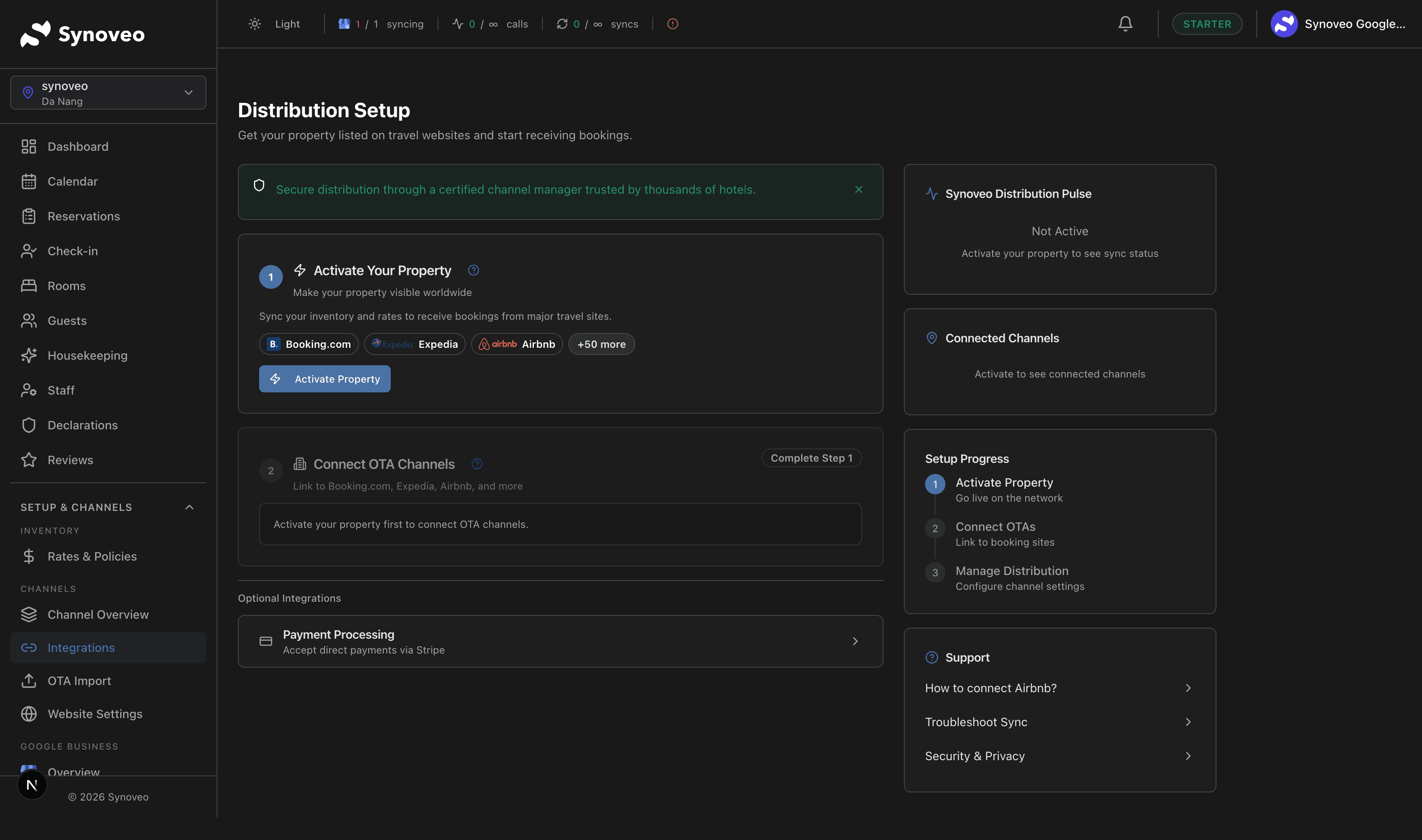
Open the Integrations page
In your Synoveo console, go to Channels and click Connect New Channel.
Select Booking.com
Choose Booking.com from the list of available channels.
Enter your property ID
Provide your Booking.com property ID. You can find this in your Booking.com extranet under Property > General Info.
Authorize the connection
Follow the prompts to authorize Synoveo to manage your Booking.com listing. This may involve confirming the connection in your Booking.com extranet.
Map your rooms
Match each room type in Synoveo to the corresponding room type on Booking.com. Synoveo will suggest matches based on room names.
Verify and activate
Review the mapping, then activate the connection. Your rates and availability will begin syncing immediately.
If your property is already live on Booking.com, the connection will update your existing listing rather than creating a new one.
Connecting Airbnb
Airbnb is particularly popular for vacation rentals, apartments, and unique accommodation types.
Open the Integrations page
In your Synoveo console, go to Channels and click Connect New Channel.
Select Airbnb
Choose Airbnb from the available channels list.
Sign in to Airbnb
You'll be redirected to Airbnb to authorize the connection. Sign in with the account that manages your listing.
Select your listings
Choose which Airbnb listings you want to connect to Synoveo. If you have multiple listings, you can connect them all or just some.
Map rooms to listings
Match your Synoveo room types to your Airbnb listings. For vacation rentals, each property typically maps to one Airbnb listing.
Activate the connection
Confirm the mapping and activate. Airbnb will start receiving rate and availability updates from Synoveo.
Once connected, manage your rates and availability through Synoveo only. Changes made directly on Airbnb may be overwritten by the next sync.
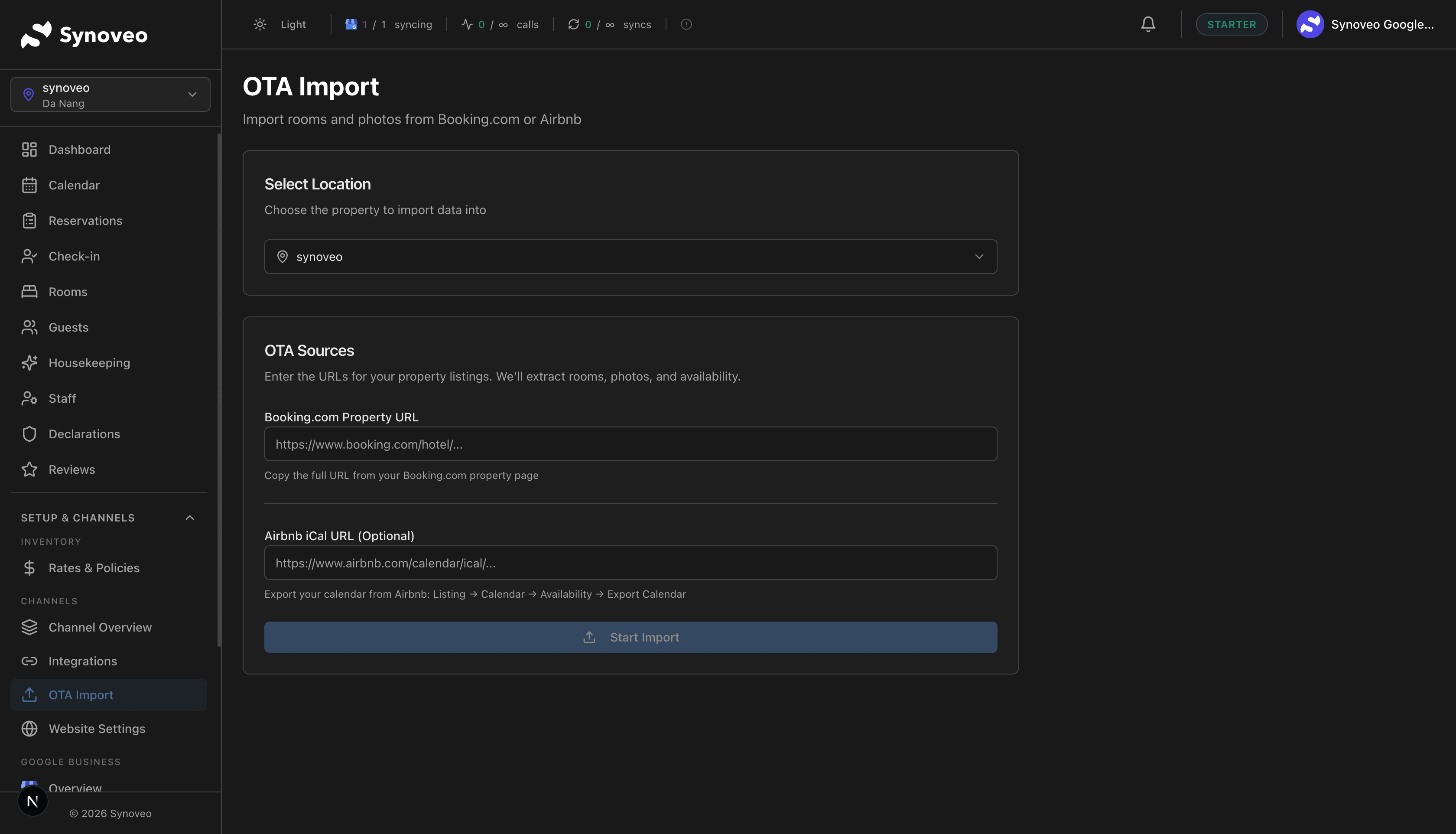
Importing Existing Listings
If you already have listings on booking sites, Synoveo can import your existing content to save you setup time.
What gets imported
| Data | Imported? | Notes |
|---|---|---|
| Room types | Yes | Names, descriptions, photos |
| Rate plans | Yes | Pricing structure and rules |
| Content | Yes | Property description, amenities |
| Availability | Yes | Current calendar |
| Booking history | No | Historical data stays on the booking site |
How to import
Start the import
After connecting a channel, Synoveo will ask if you'd like to import existing listing data.
Review imported data
Synoveo shows you what was found on the booking site. Review room types, rates, and content before accepting.
Accept or adjust
You can accept the imported data as-is, or modify it before saving. Imported data becomes your starting point in Synoveo.
Room Mapping
Room mapping is how you tell the channel manager which Synoveo room corresponds to which listing on a booking site.
How mapping works
- Each room type in Synoveo can be mapped to one room type on each connected channel
- Synoveo suggests matches based on room names and descriptions
- You can adjust mappings at any time
Mapping tips
- Keep names consistent -- If your "Deluxe Double" in Synoveo is called "Deluxe Double Room" on Booking.com, the mapping is straightforward
- Check bed configurations -- Make sure the bed types match between Synoveo and the booking site
- Map all rooms -- Unmapped rooms won't sync, which can lead to availability gaps
Managing Content Per Channel
Some channels allow you to customize how your property appears:
| Setting | Description |
|---|---|
| Description | Property and room descriptions can vary by channel |
| Photos | Select which photos to show on each channel |
| Policies | Cancellation and payment policies per channel |
| Rate adjustments | Add a markup or discount for specific channels |
Many properties add a small markup (5-10%) on booking site rates compared to their direct booking price. This encourages guests to book directly while still maintaining competitive listings.
Connection Status
Each channel connection has a status indicator:
| Status | Meaning | Action |
|---|---|---|
| Connected | Active and syncing | No action needed |
| Syncing | Update in progress | Wait for completion |
| Warning | Minor issue detected | Check the details and resolve |
| Disconnected | Connection lost | Reconnect the channel |
Troubleshooting Connections
"Connection failed"
- Verify your credentials on the booking site are correct
- Check that you have admin access to the listing
- Try disconnecting and reconnecting
"Rooms not mapping"
- Ensure room types are set up in Synoveo before mapping
- Check that the room names on the booking site match what you expect
- Try mapping manually if automatic suggestions don't match
"Rates not updating"
- Check the sync status on the Channels page
- Verify that rates are configured in Synoveo
- Look for error messages in the sync activity log
"Availability mismatch"
- Make sure you're managing availability only through Synoveo
- Check if there are pending bookings that haven't synced yet
- Use the manual sync button to force an update